Module 3 Formstorming

Weekly Activity Template

Cerin Noupbaev


Project 3


Module 3

For activity 1, I mainly followed Module 3 Tutorial 1. Each GIF has a hyperlink to the appropriate website in the description. Click on it to experiment yourself!

Activity 1
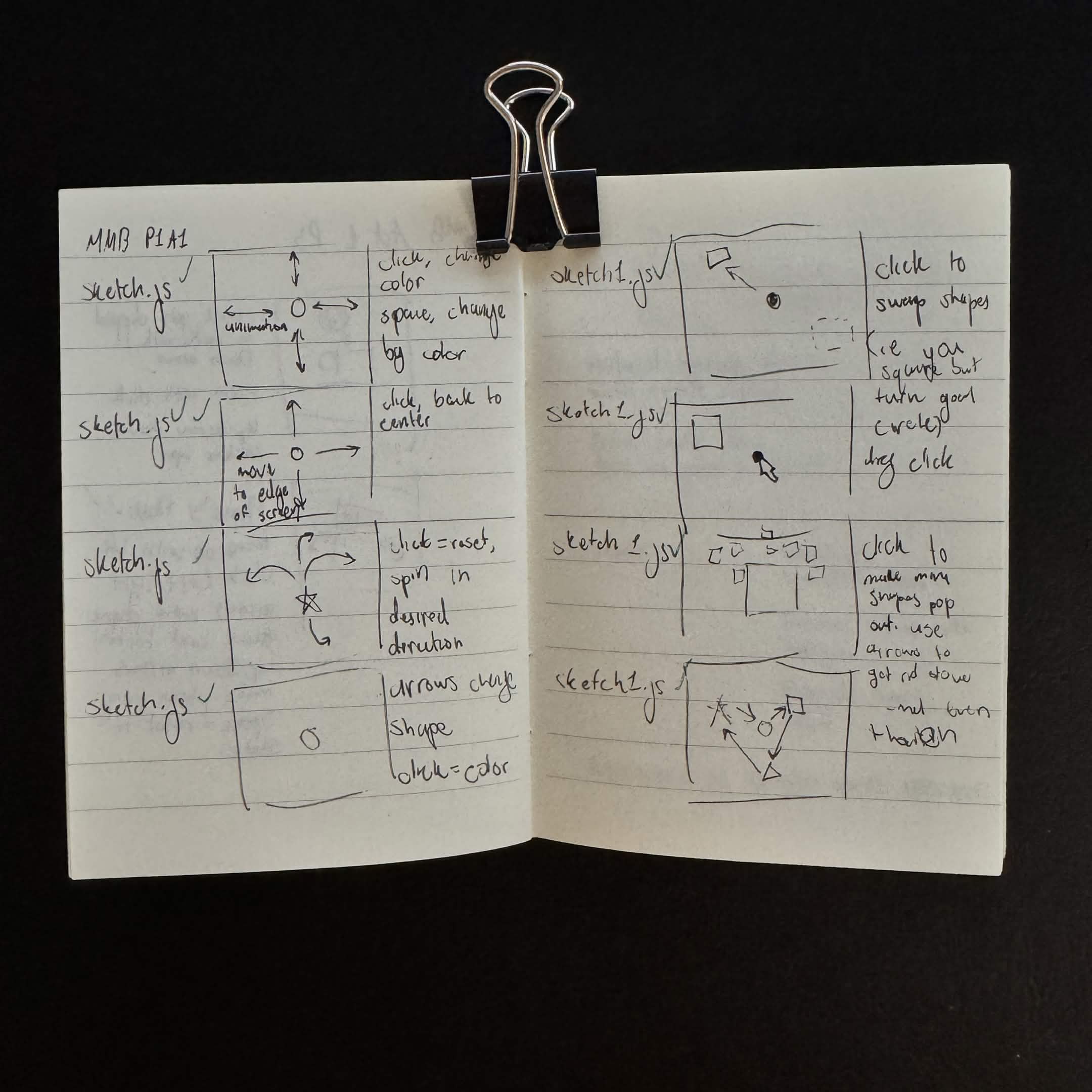
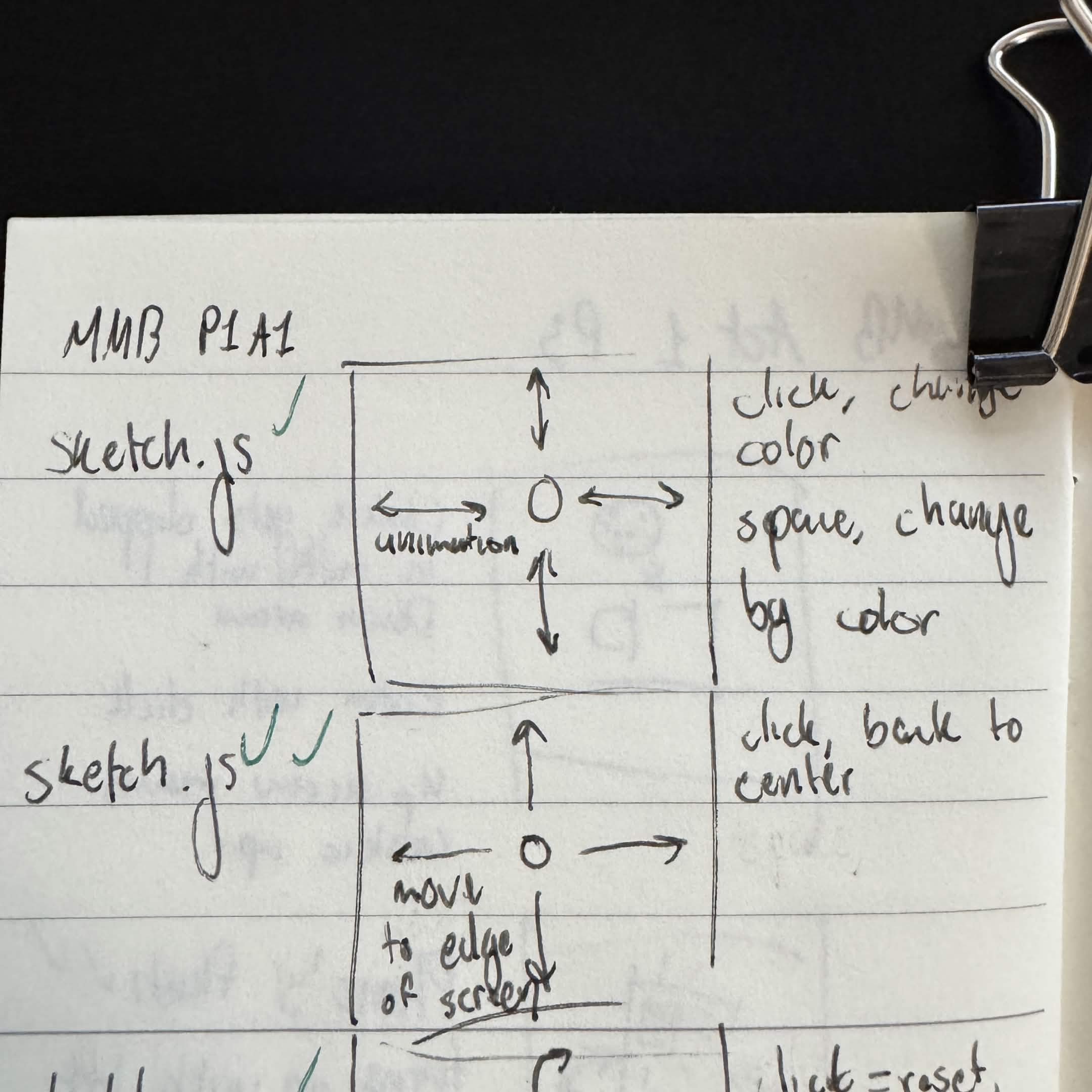
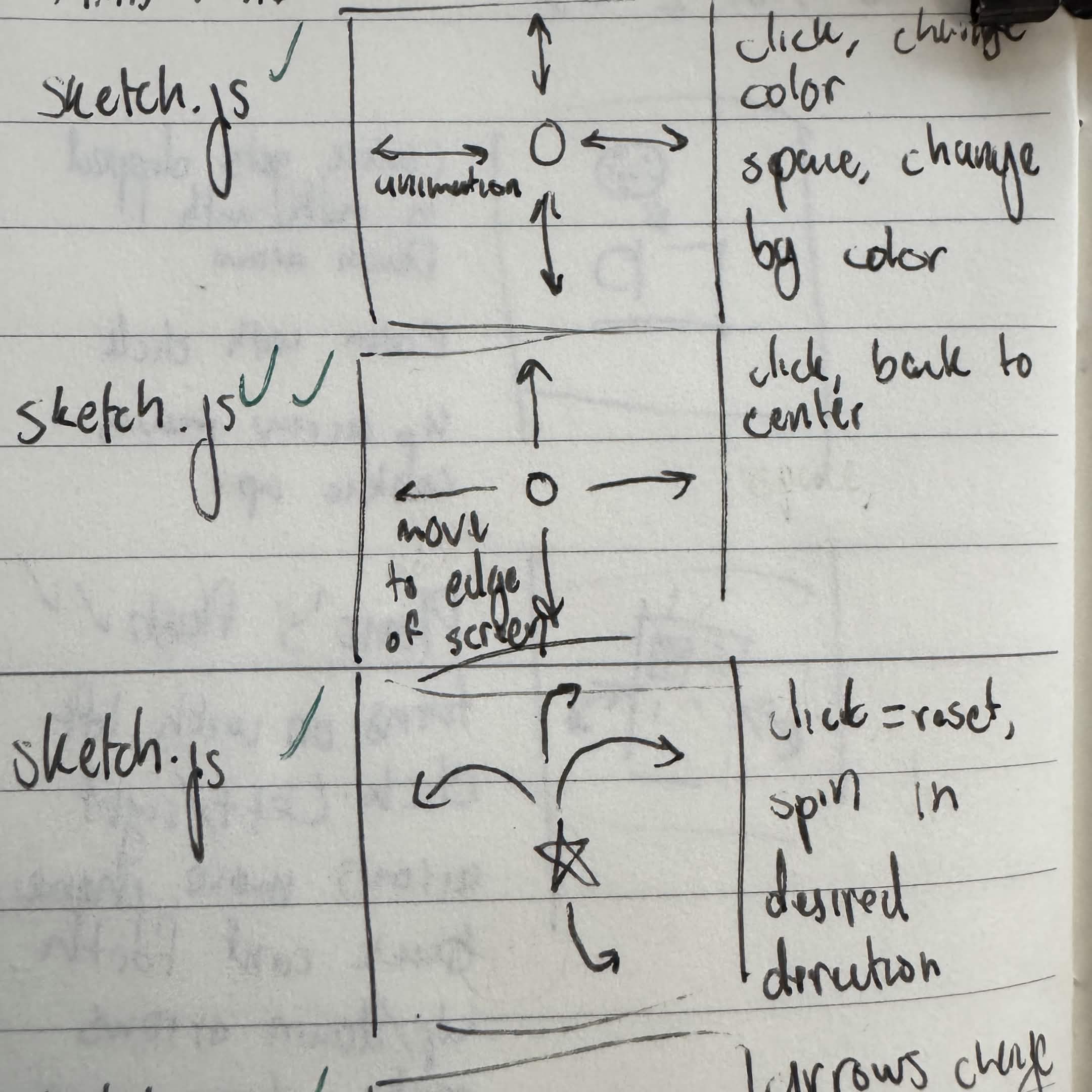
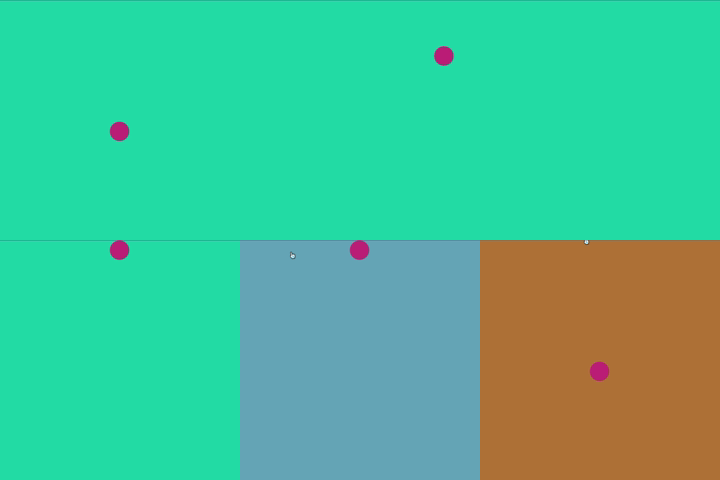
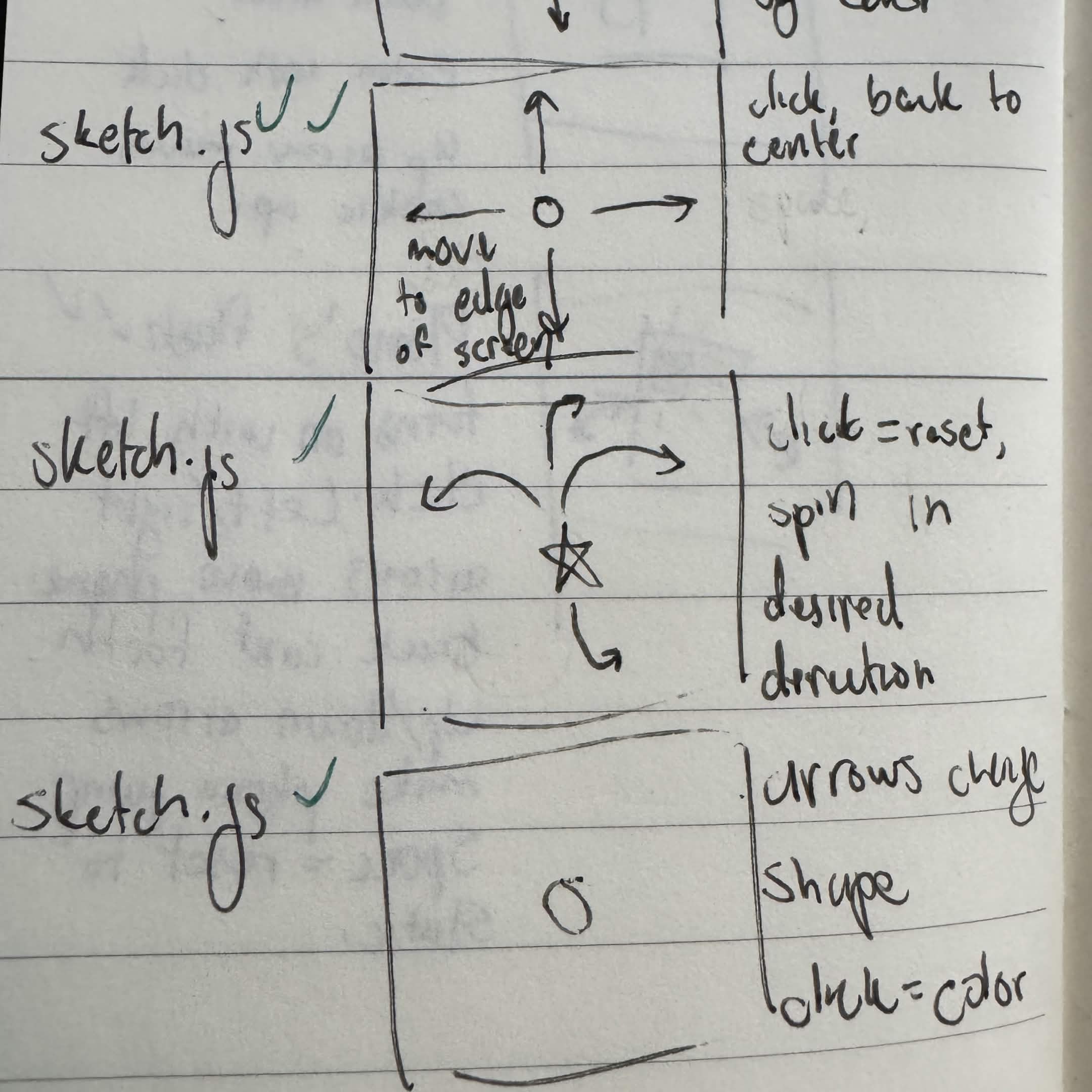
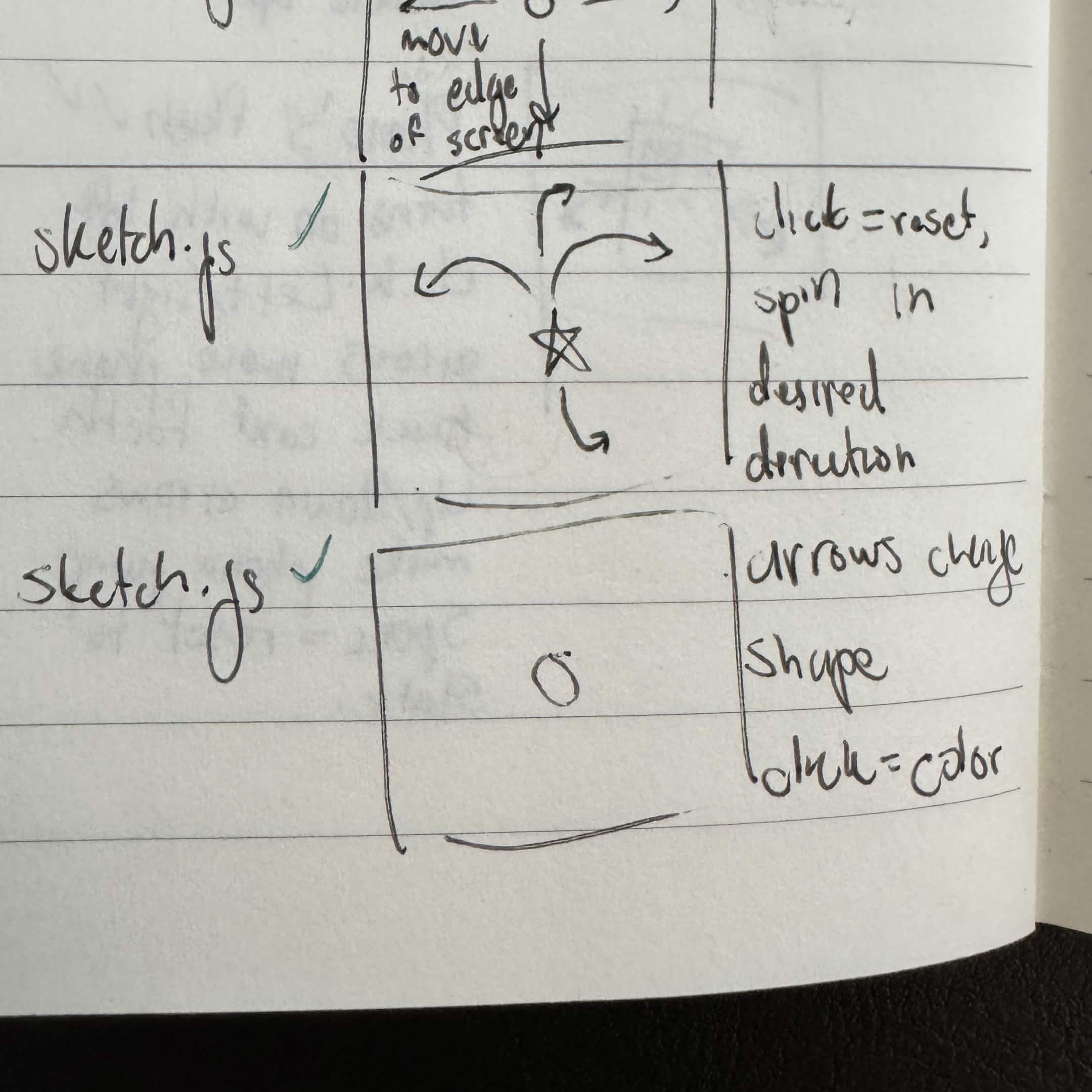
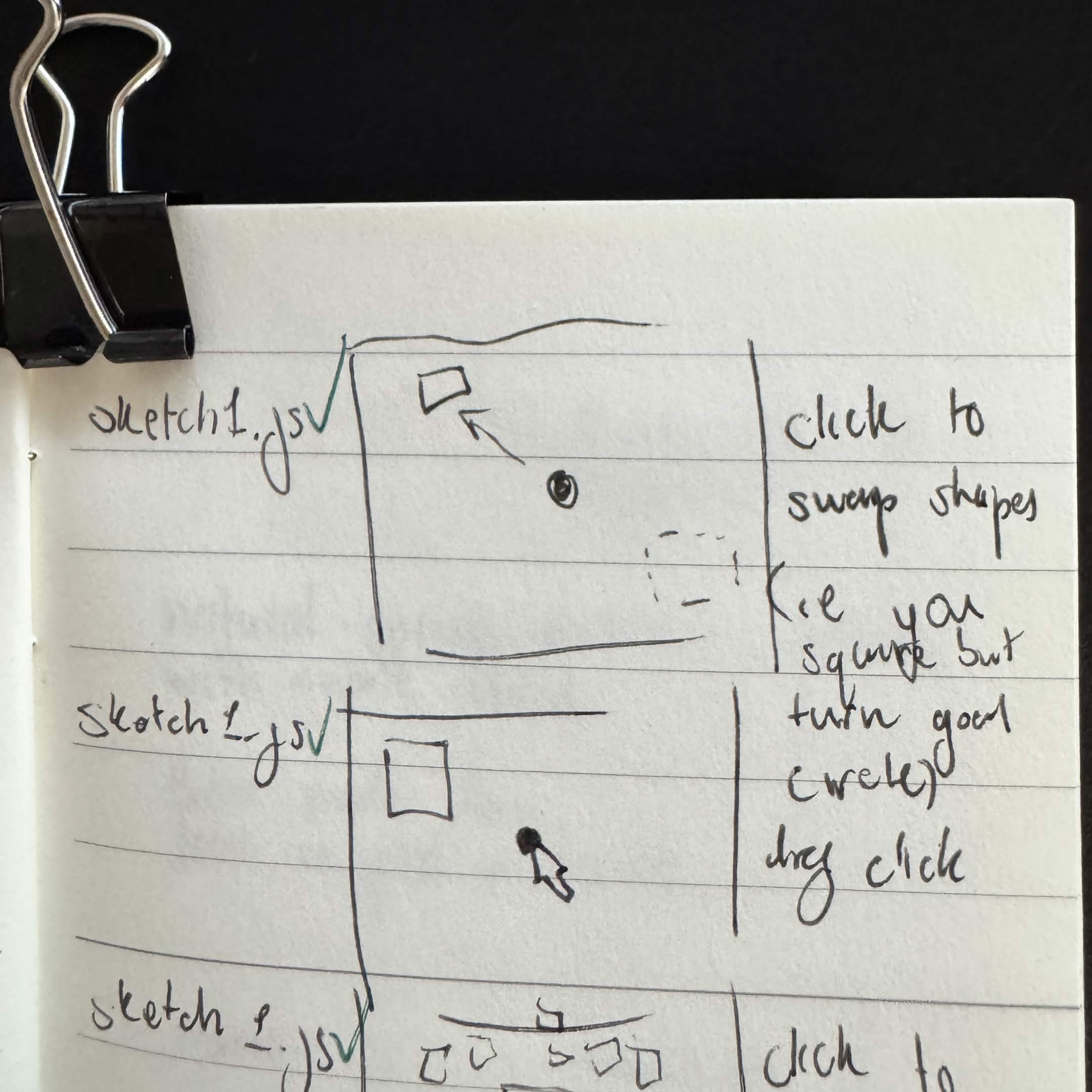
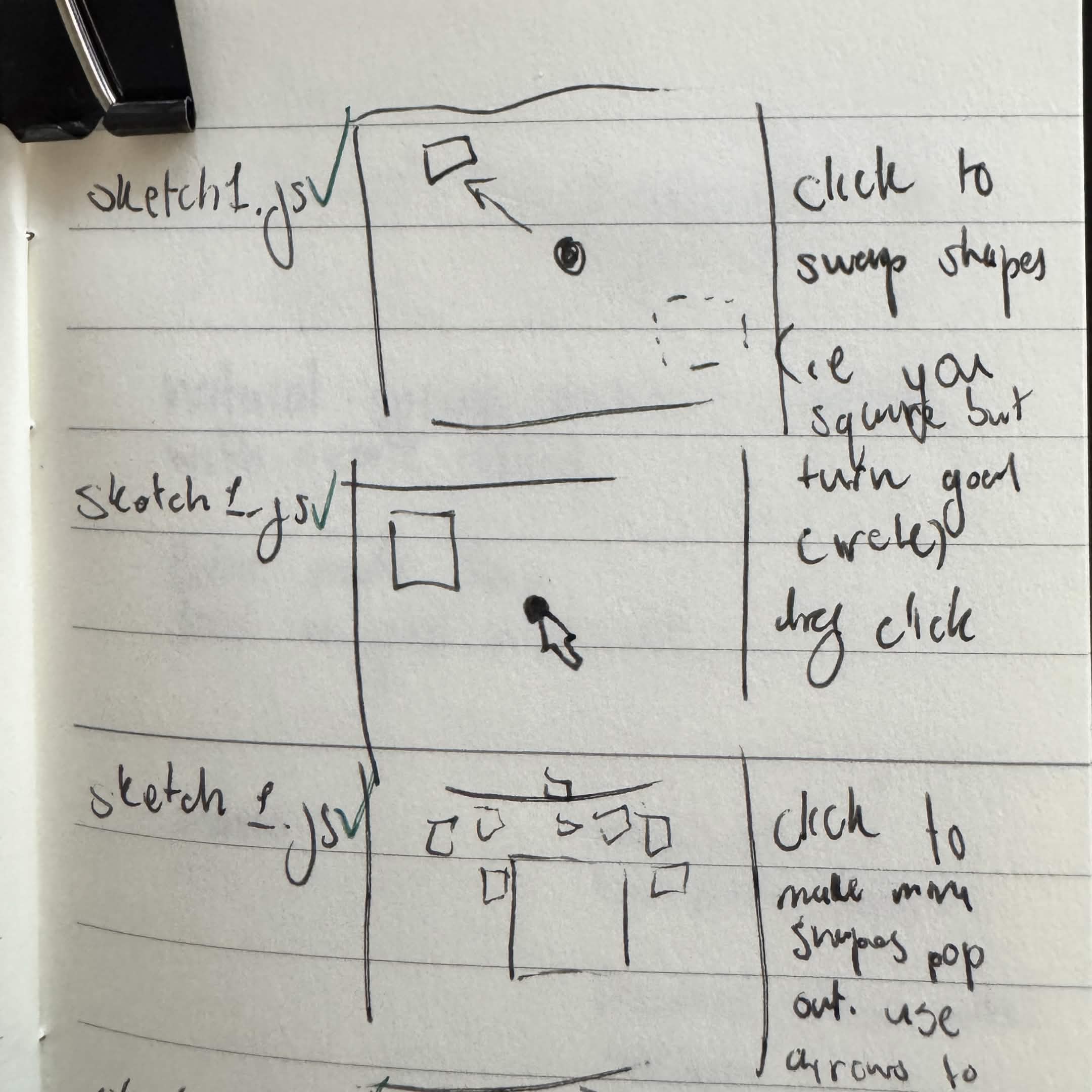
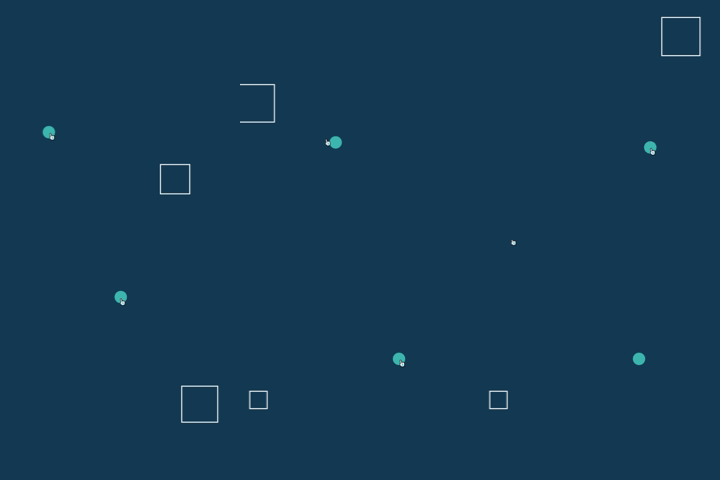
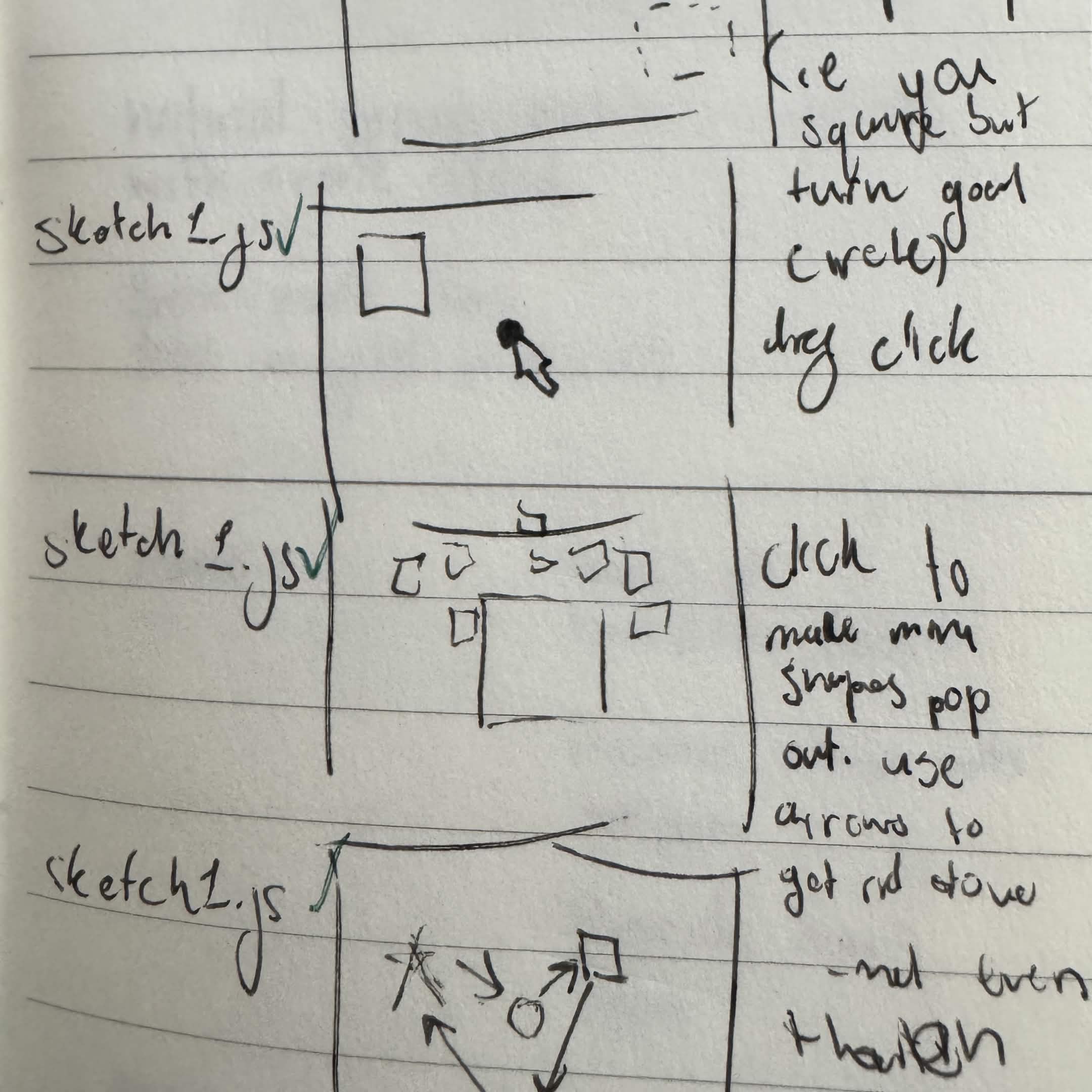
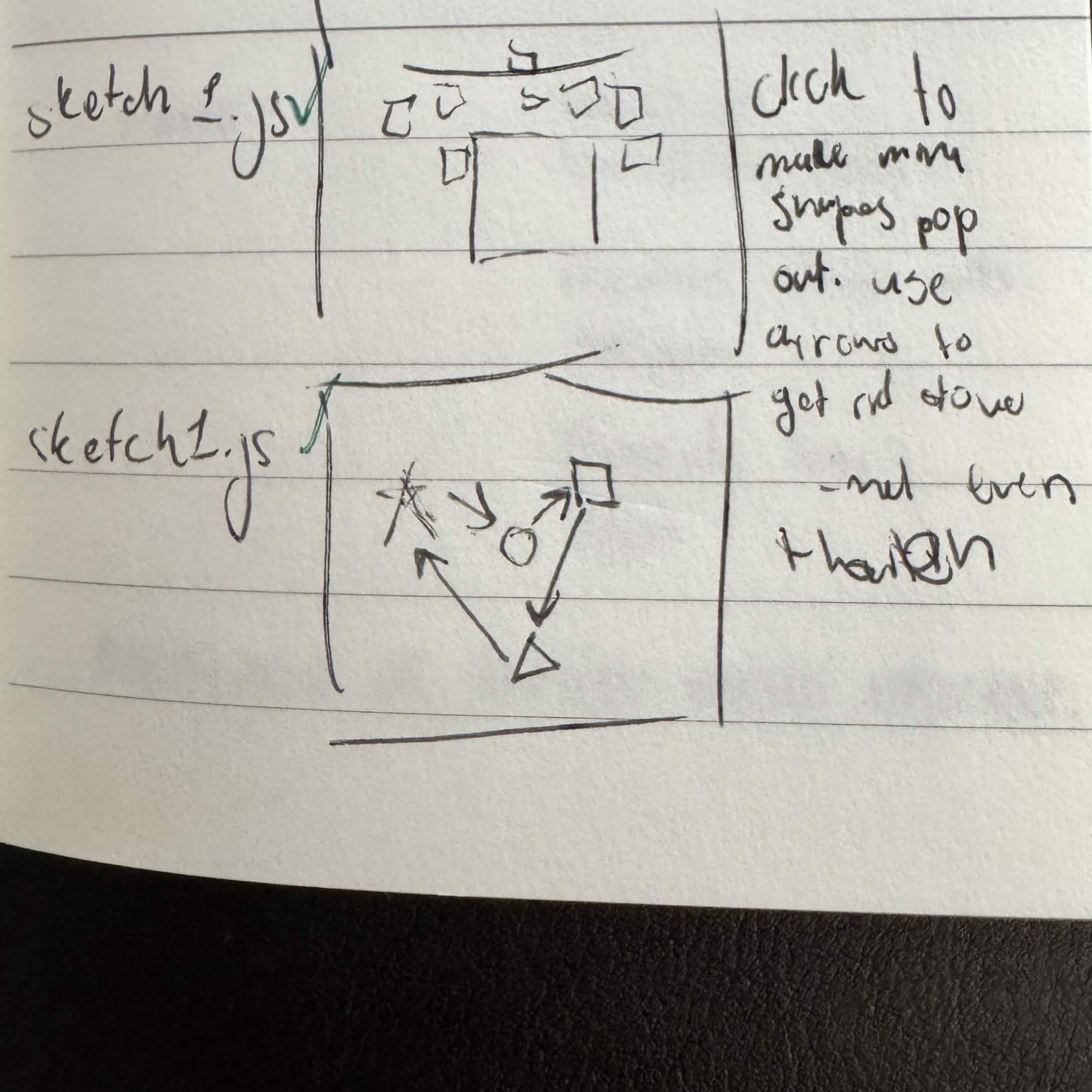
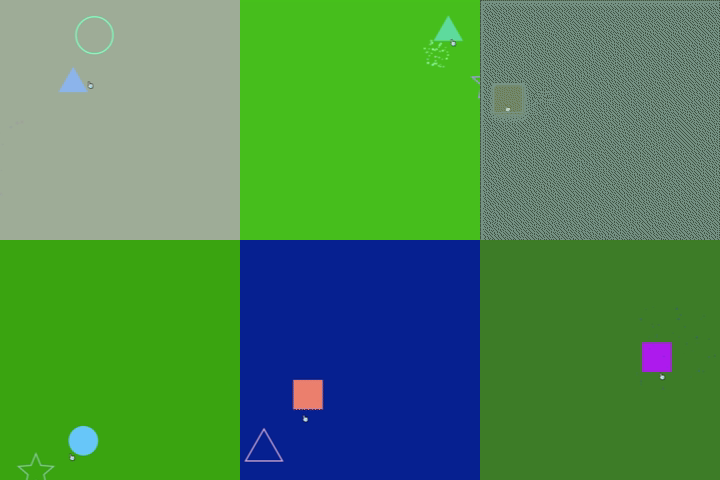
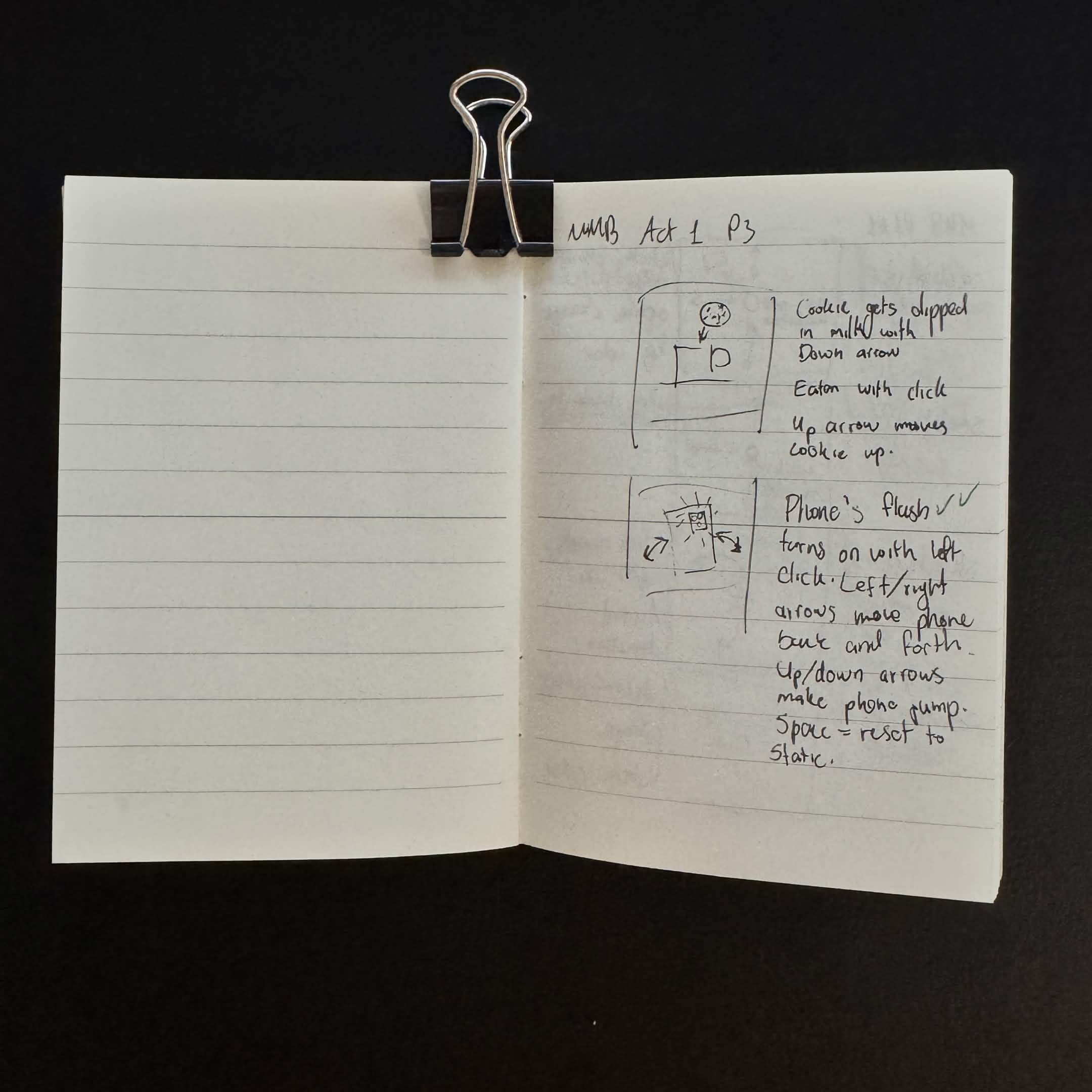
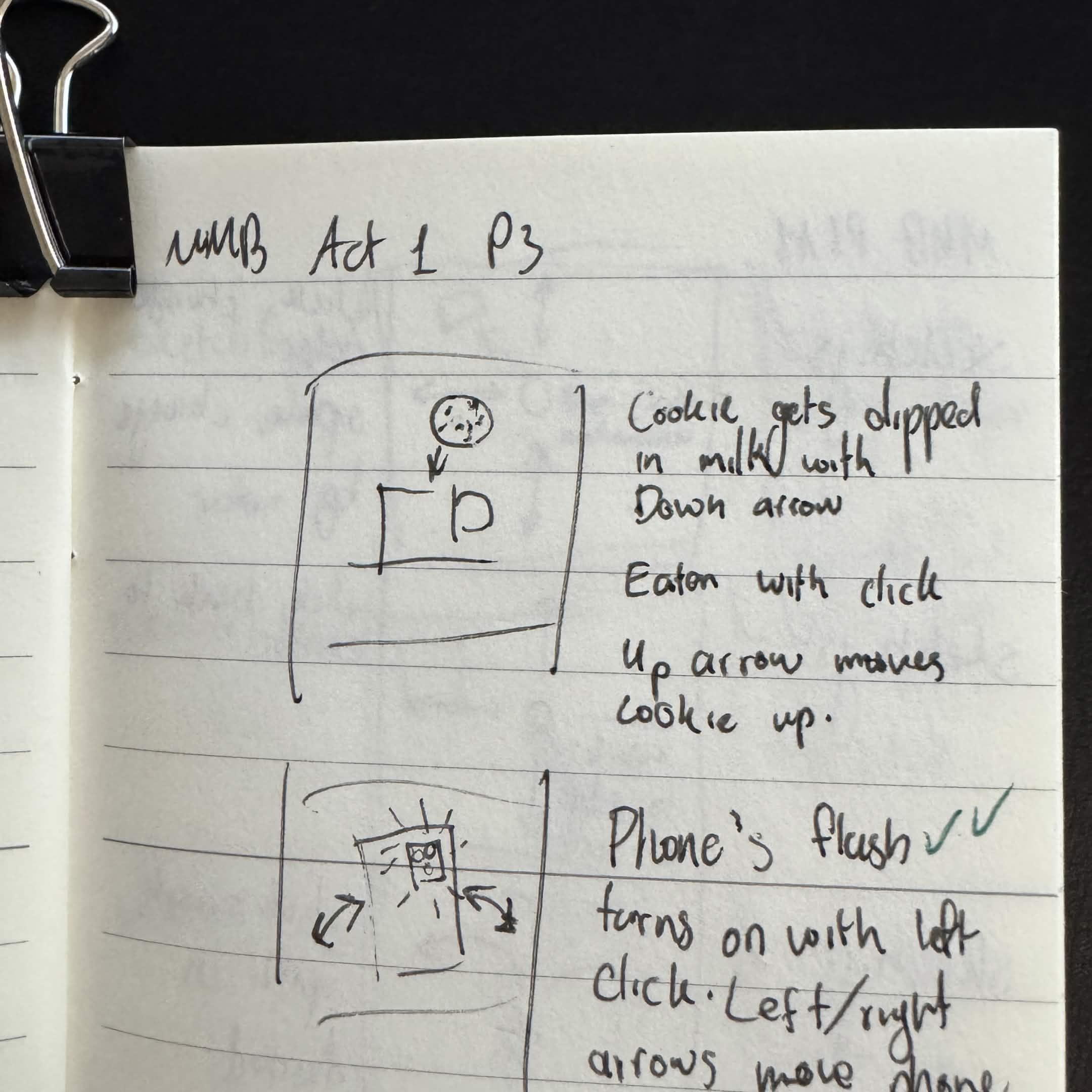
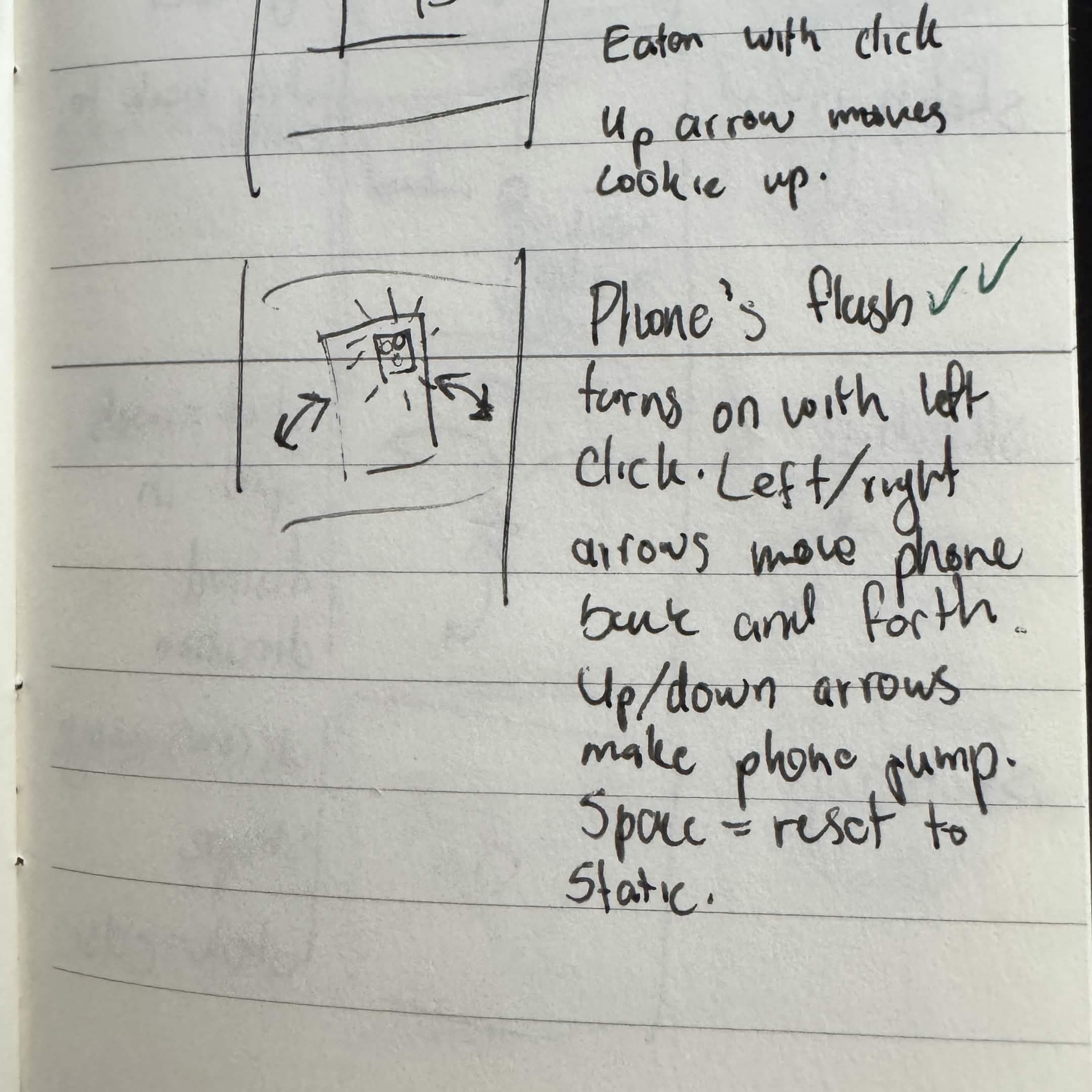
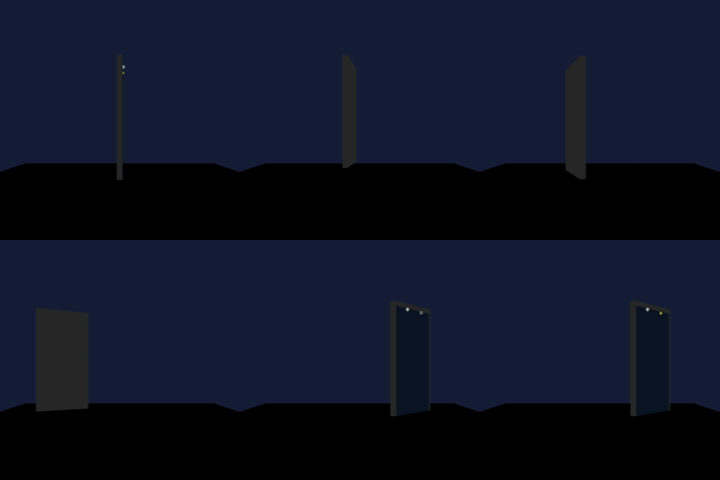
First, I drew some drafts of ideas for this activity My first idea was to add an animation on the circle depending on the arrow key clicked. On top of this, the space bar would make the background color change and left clicking would make the circle change colors. <a href='https://noupbaea.phoenix.sheridanc.on.ca/MMB-P3-A1-Sites/1-colorChanges/mine.html' target='_blank'><p>Website Link</p></a>Using Claude AI, I got a working website for the idea. Note, I continued to use Claude AI for the rest of these websites. My second idea was the same as my previous one, except the dot wouldn't return back to the middle. Basically, it'd move all the way to the edge of the screen. <a href='https://noupbaea.phoenix.sheridanc.on.ca/MMB-P3-A1-Sites/2-movingNoCorners/mine1.html' target='_blank'><p>Website Link</p></a> When prompting Claude for this website, for some reason it didn't let the ball move all the way to the corners of the screen. I realized I only specific to let it touch the edges of the screen and not the corners. <a href='https://noupbaea.phoenix.sheridanc.on.ca/MMB-P3-A1-Sites/3-movingYesCorners/mine2.html' target='_blank'><p>Website Link</p></a> This time, I fixed the mistake and now the dot moves freely. My third idea was to have a star in the center, and it'd spin out like a shooting star depending on what arrow key you pressed. <a href='https://noupbaea.phoenix.sheridanc.on.ca/MMB-P3-A1-Sites/4-shootingStar/mine3.html' target='_blank'><p>Website Link</p></a> There were no issues putting the website together and the star works perfectly. My fourth idea was to have the circle in the middle change shape depending on the arrow key you pressed. Clicking your mouse makes it cycle through colors. <a href='https://noupbaea.phoenix.sheridanc.on.ca/MMB-P3-A1-Sites/5-shapeChanger/mine4.html' target='_blank'><p>Website Link</p></a> Prompting the AI was pretty straight forward with this, so there were no issues. I wanted my fifth idea to entice the user into more interaction, so I wanted to make a square chaser game. You could click to swap your avatar shape. <a href='https://noupbaea.phoenix.sheridanc.on.ca/MMB-P3-A1-Sites/6-squareChaser/mine5.html' target='_blank'><p>Website Link</p></a> The website was again straightforward. I did forget to add the ability to change your avatar shape. Bouncing off my previous idea, I just wanted to add a mouse drag option on top of the arrow keys, since keyboard-only was tedious and slow. <a href='https://noupbaea.phoenix.sheridanc.on.ca/MMB-P3-A1-Sites/7-squareChaserWithMouseDrag/mine6.html' target='_blank'><p>Website Link</p></a> This website was easy to put together. For some reason, the sizes of the squares change, but I didn't care to fix it since it didn't break anything or look too bad. My sixth idea was to have add on my shape changer idea by making the shape duplicate into mini shapes when you left click. <a href='https://noupbaea.phoenix.sheridanc.on.ca/MMB-P3-A1-Sites/8-shapeChangerWithFireworks/mine7.html' target='_blank'><p>Website Link</p></a> This website ended up being shape changer with fireworks instead of mini shapes, which I thought actually looked cooler. Space changes the shape, left click creates fireworks, and arrow keys move the shape around. Working with my square chaser game, my seventh idea was to make the shape change when colliding with the shape it was chasing. <a href='https://noupbaea.phoenix.sheridanc.on.ca/MMB-P3-A1-Sites/9-shapeChangerInteractive/mine8.html' target='_blank'><p>Website Link</p></a> This was a pretty fun website because the colors of the shapes and background change each time the shape changes. There's also fireworks that represent that change too. After coming up with and completing all these ideas, I came up with another page of ideas. My eighth idea was to make a cookie dipper with arrow controls and cookie-eating interactivity, but the website looked terrible so I scrapped the idea. Also felt too specific for formstorming... My ninth and last idea was to make a phone flash concert simulator. It would turn on the flash with left click. Left and right arrows would move the phone back and forth in a swaying motion, and up and down arrows would make the phone jump. <a href='https://noupbaea.phoenix.sheridanc.on.ca/MMB-P3-A1-Sites/11-firstConcertFlash/mine10.html' target='_blank'><p>Website Link</p></a> There was a couple problems with this first iteration. Most majorly, the phone wasn't swaying, but doing some weird microwave rotations with arrow keys? The model looked a little weird and it was in some random box... <a href='https://noupbaea.phoenix.sheridanc.on.ca/MMB-P3-A1-Sites/12-secondConcertFlash/mine11.html' target='_blank'><p>Website Link</p></a> In this iteration, I fixed the weird microwave movements to proper swaying. I tried changing the phone model, but the AI had a really hard time with it, so I accepted this is something that would only be fixed with human-made code or modelling, which wasn't worth it for this activity. I didn't yet change the weird box though. <a href='https://noupbaea.phoenix.sheridanc.on.ca/MMB-P3-A1-Sites/13-finalConcertFlashNoSparkles/mine12.html' target='_blank'><p>Website Link</p></a> Finally, I got rid of the box and moved the phone much closer to the user. I also increased the swaying rate. <a href='https://noupbaea.phoenix.sheridanc.on.ca/MMB-P3-A1-Sites/14-finalConcertFlashYesSparkles/mine13.html' target='_blank'><p>Website Link</p></a> After making the final version, I alos made a more exciting sparkly version, but for some reason the sparkles wouldn't stop even when the phone stayed still. I tried fixing it with the AI again, but again, this seemed like a human-only problem.

Activity 2
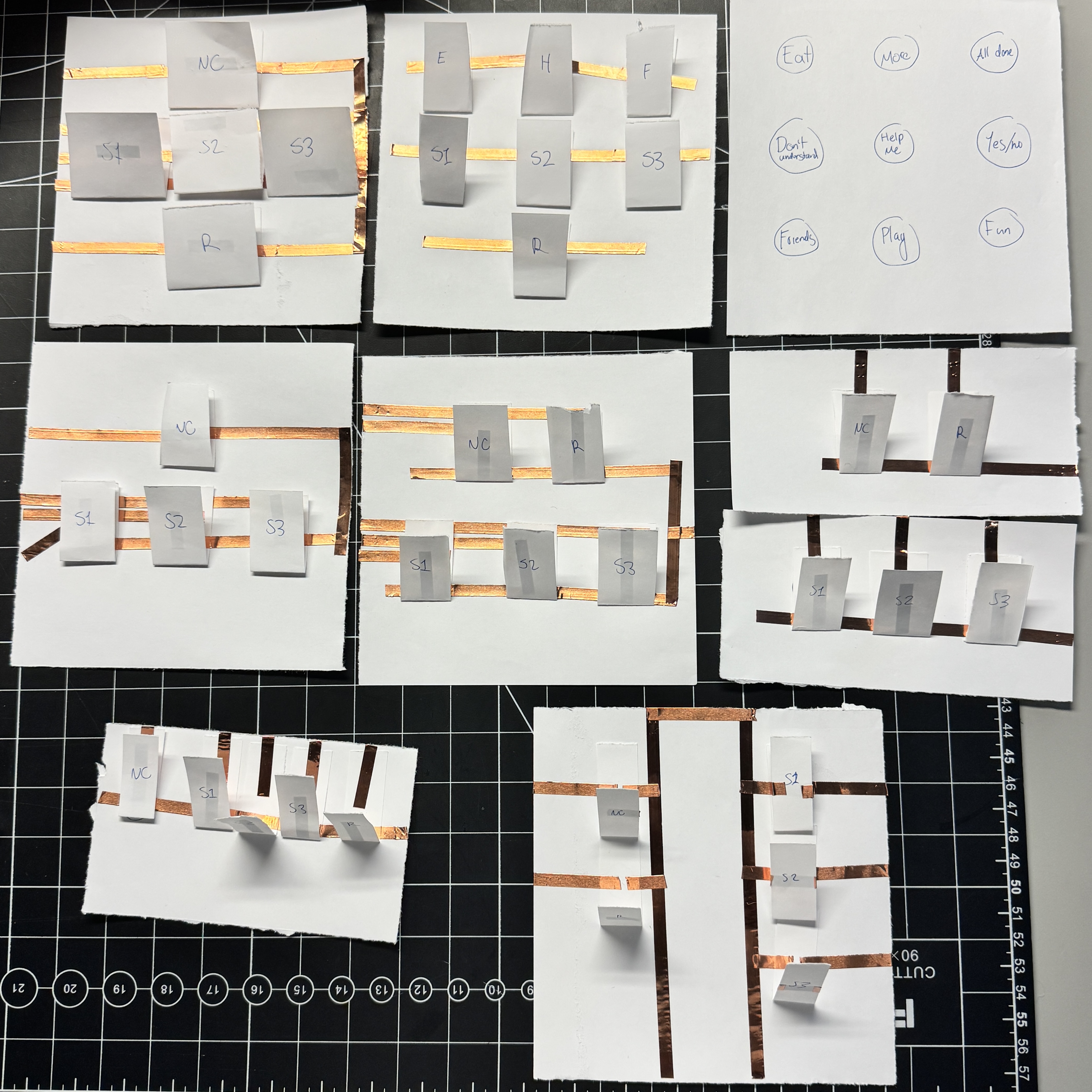
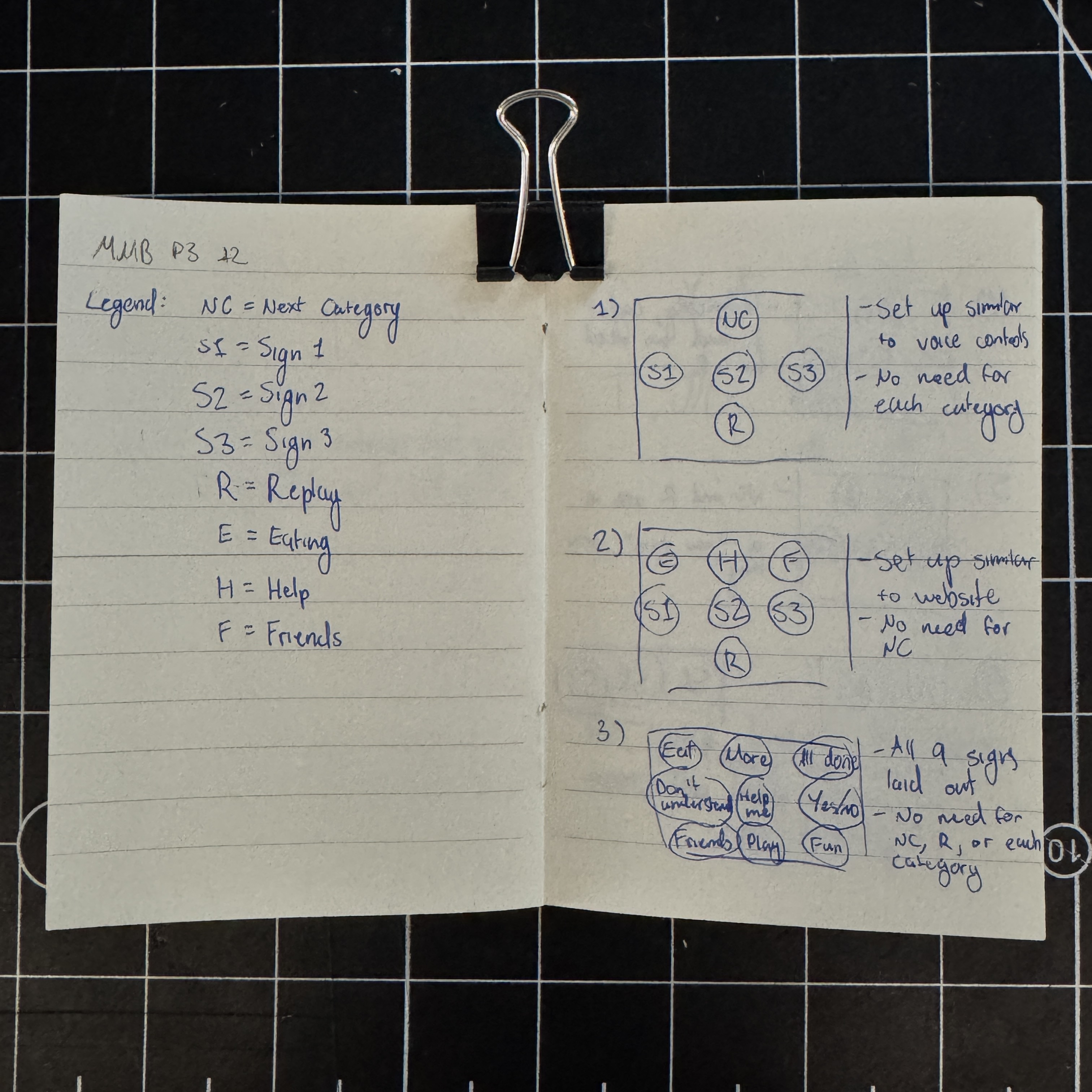
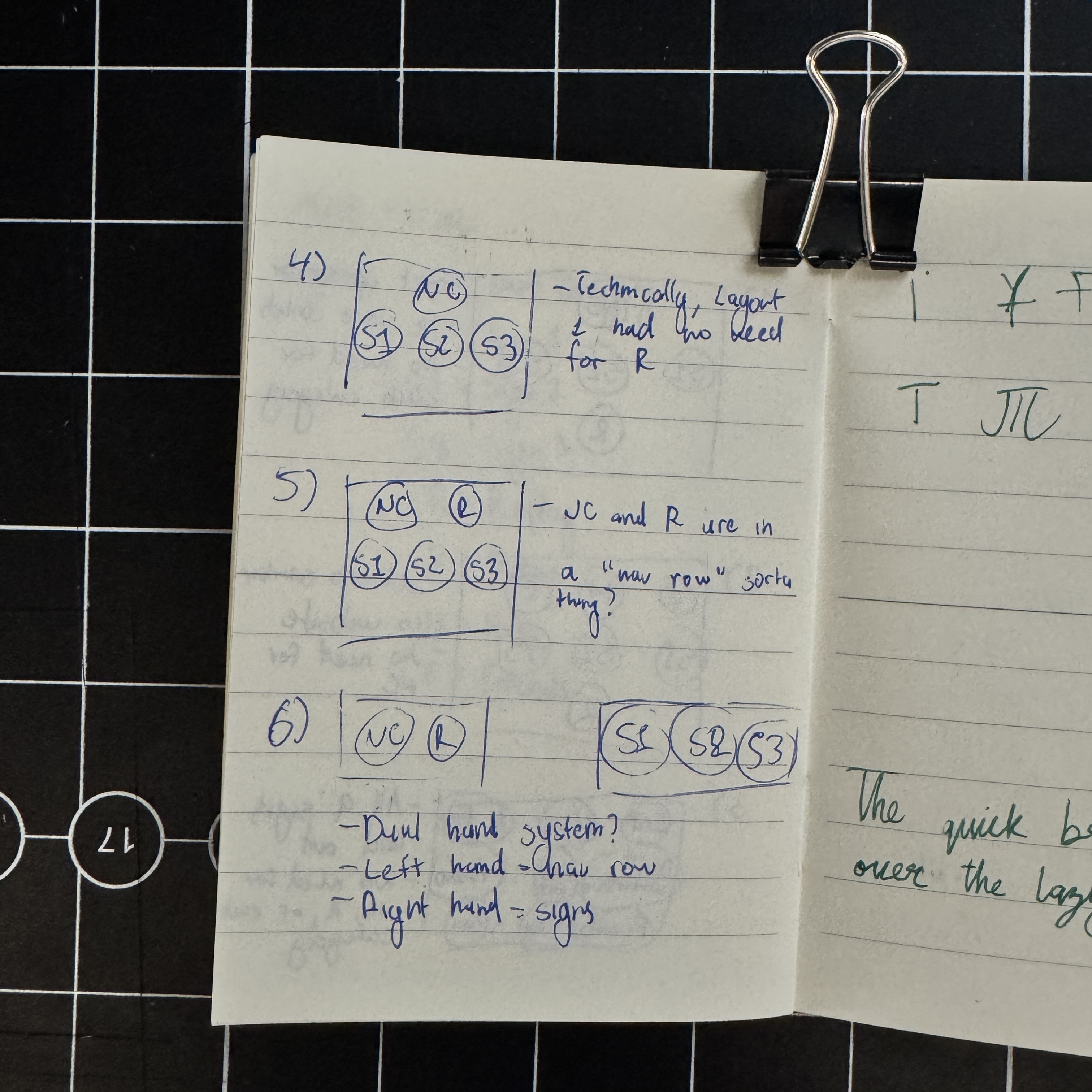
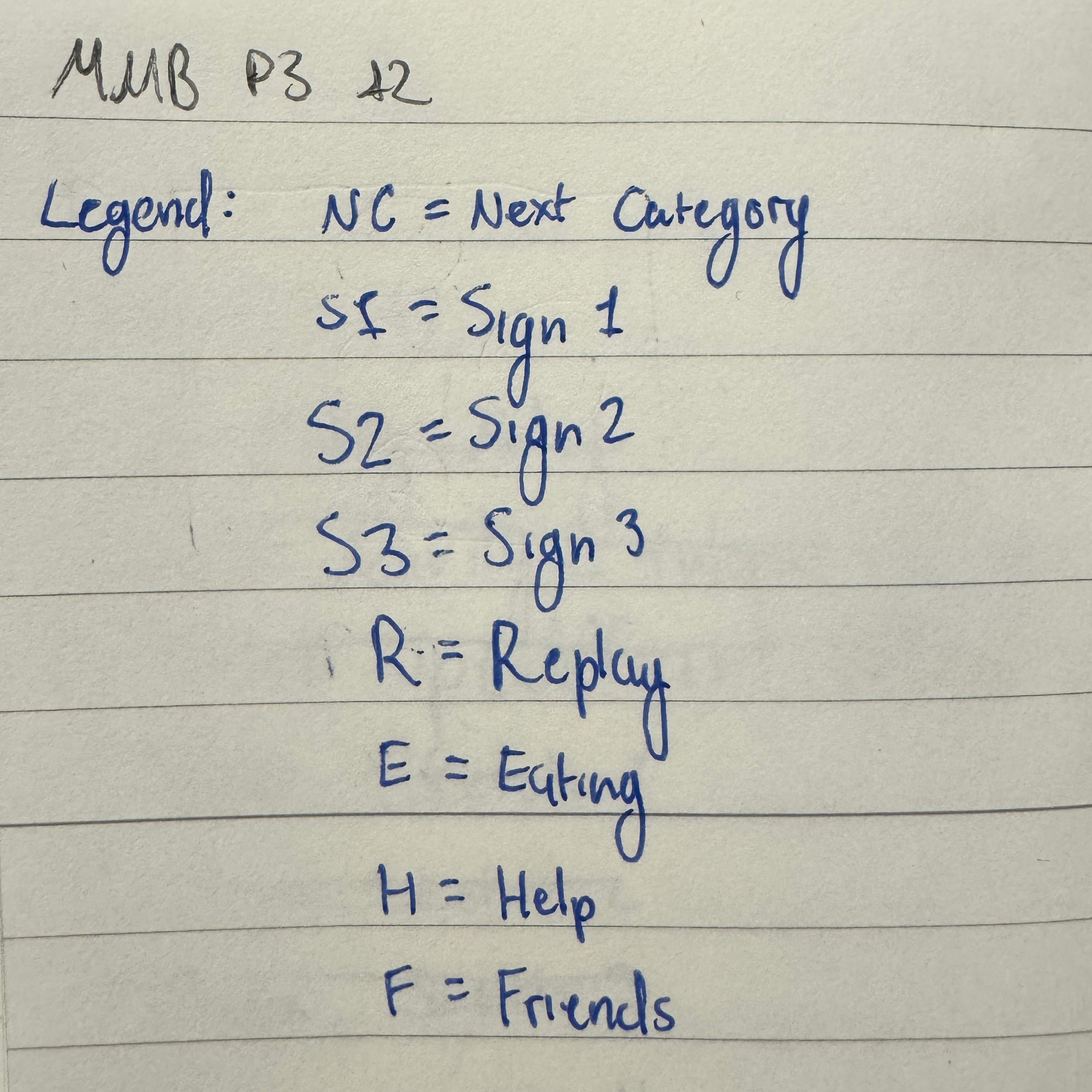
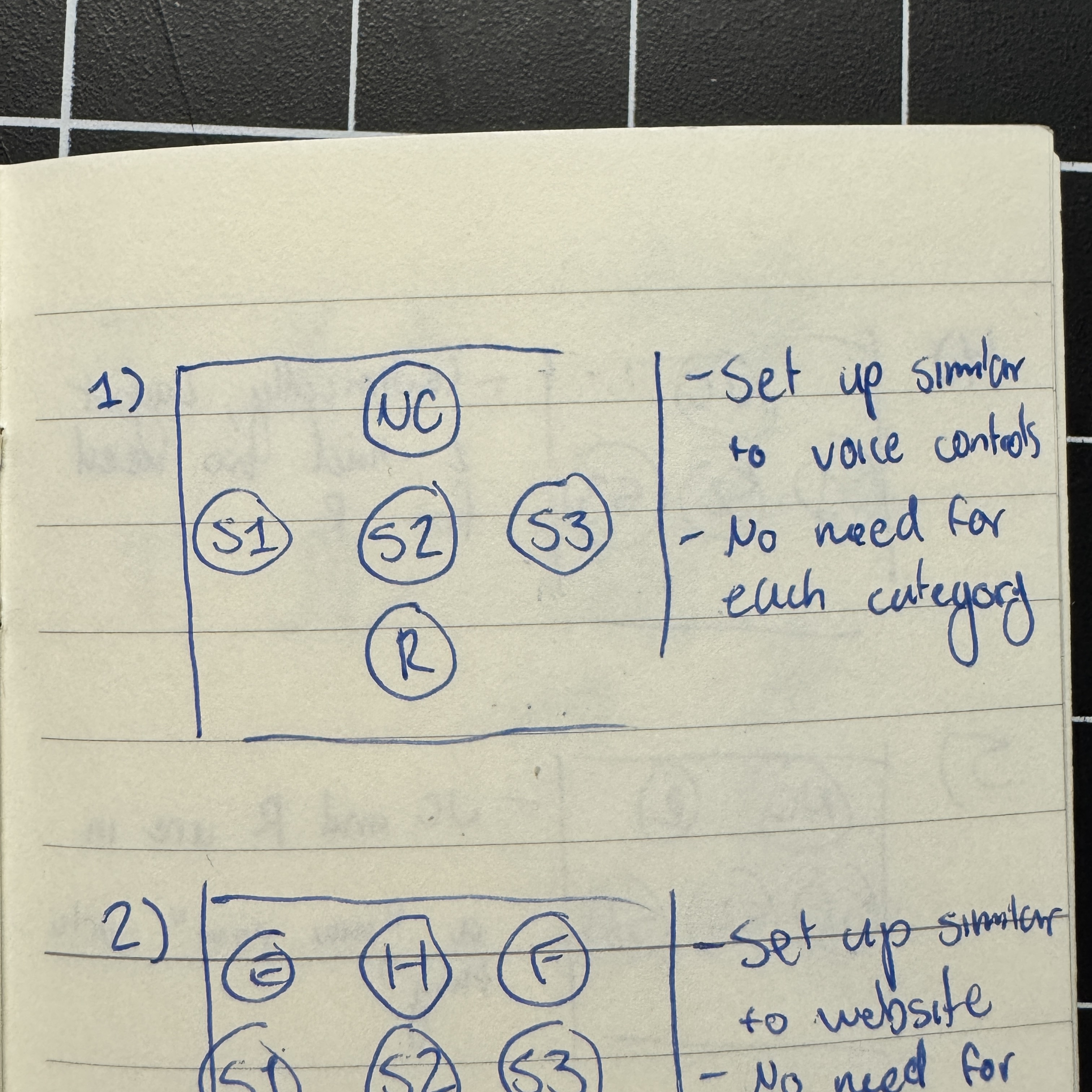
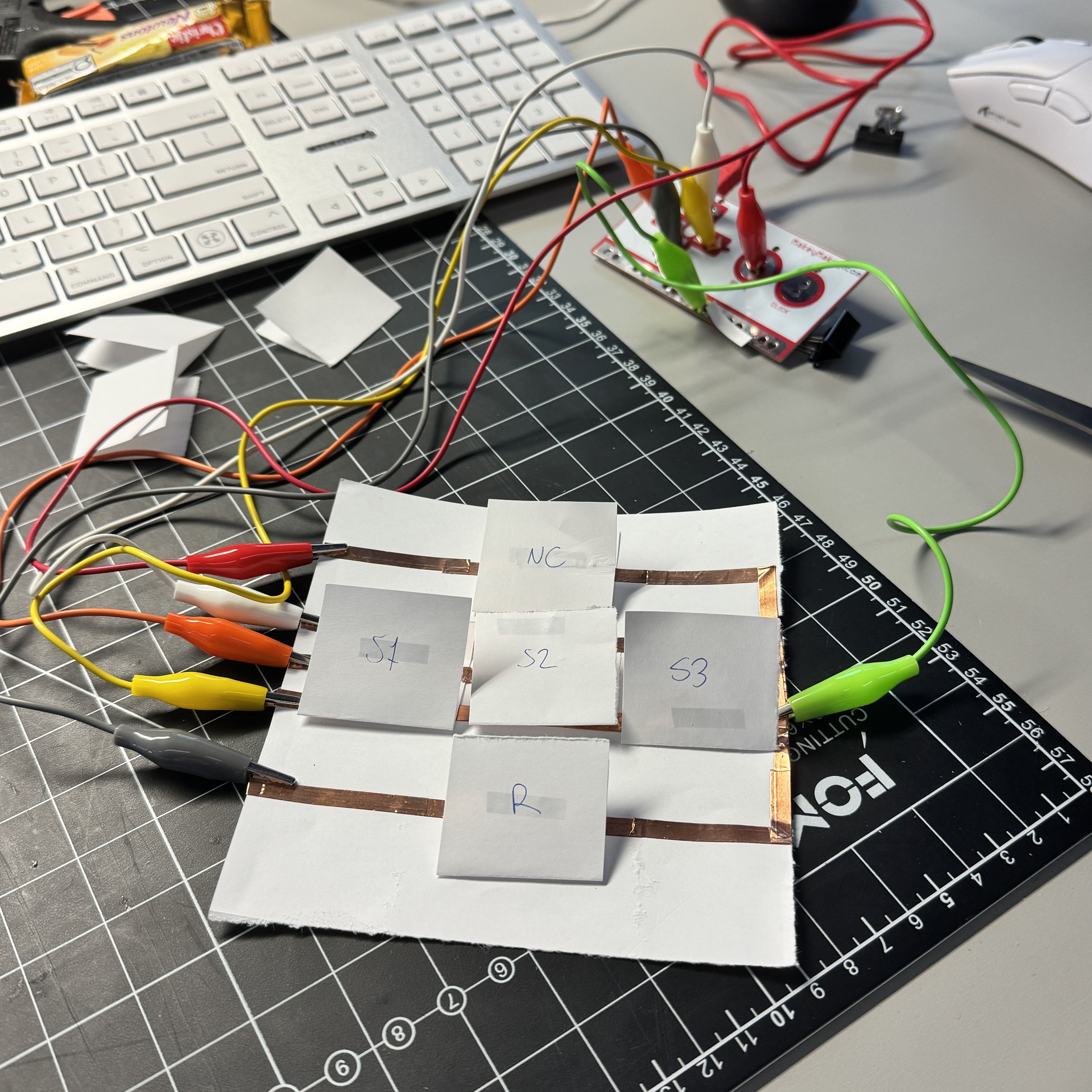
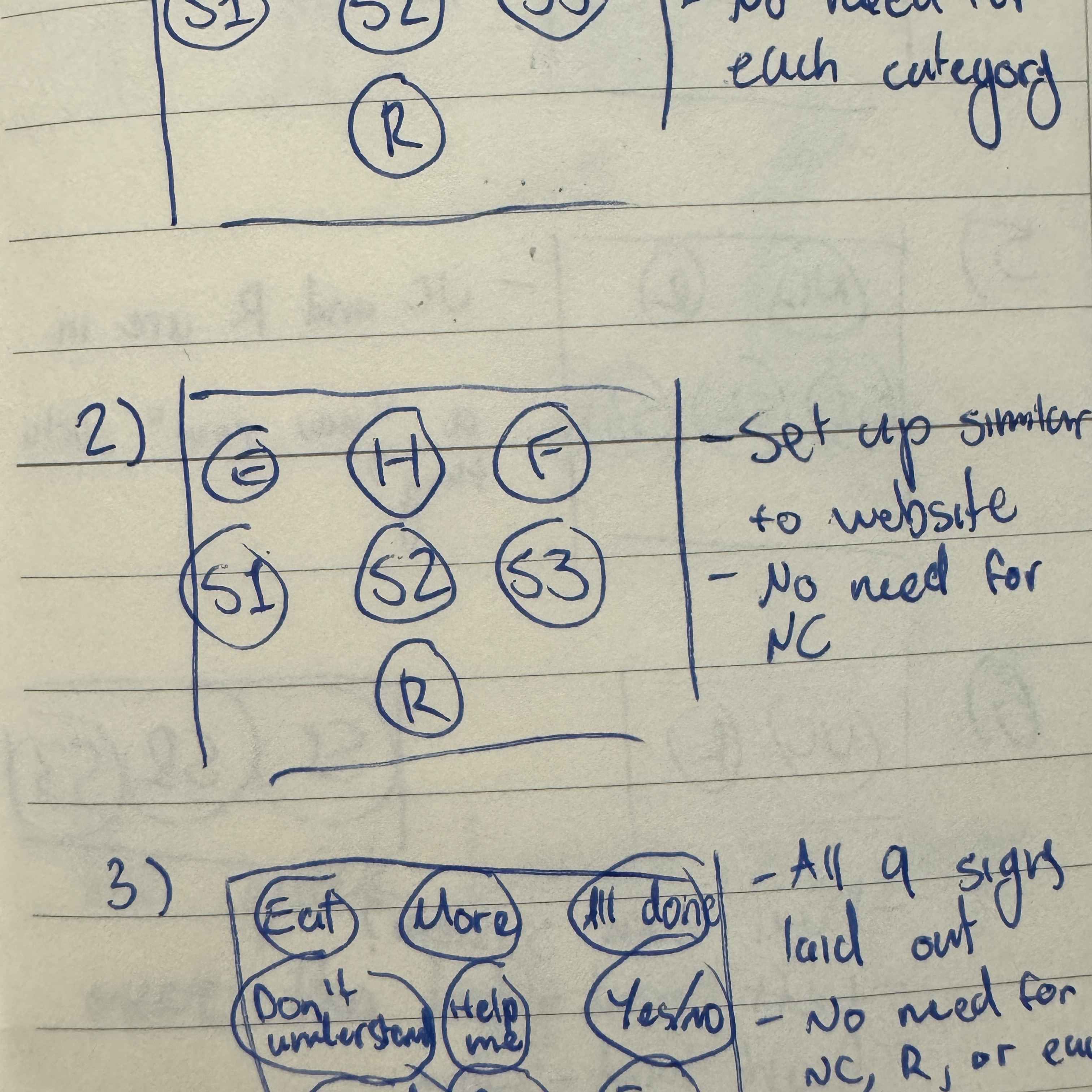
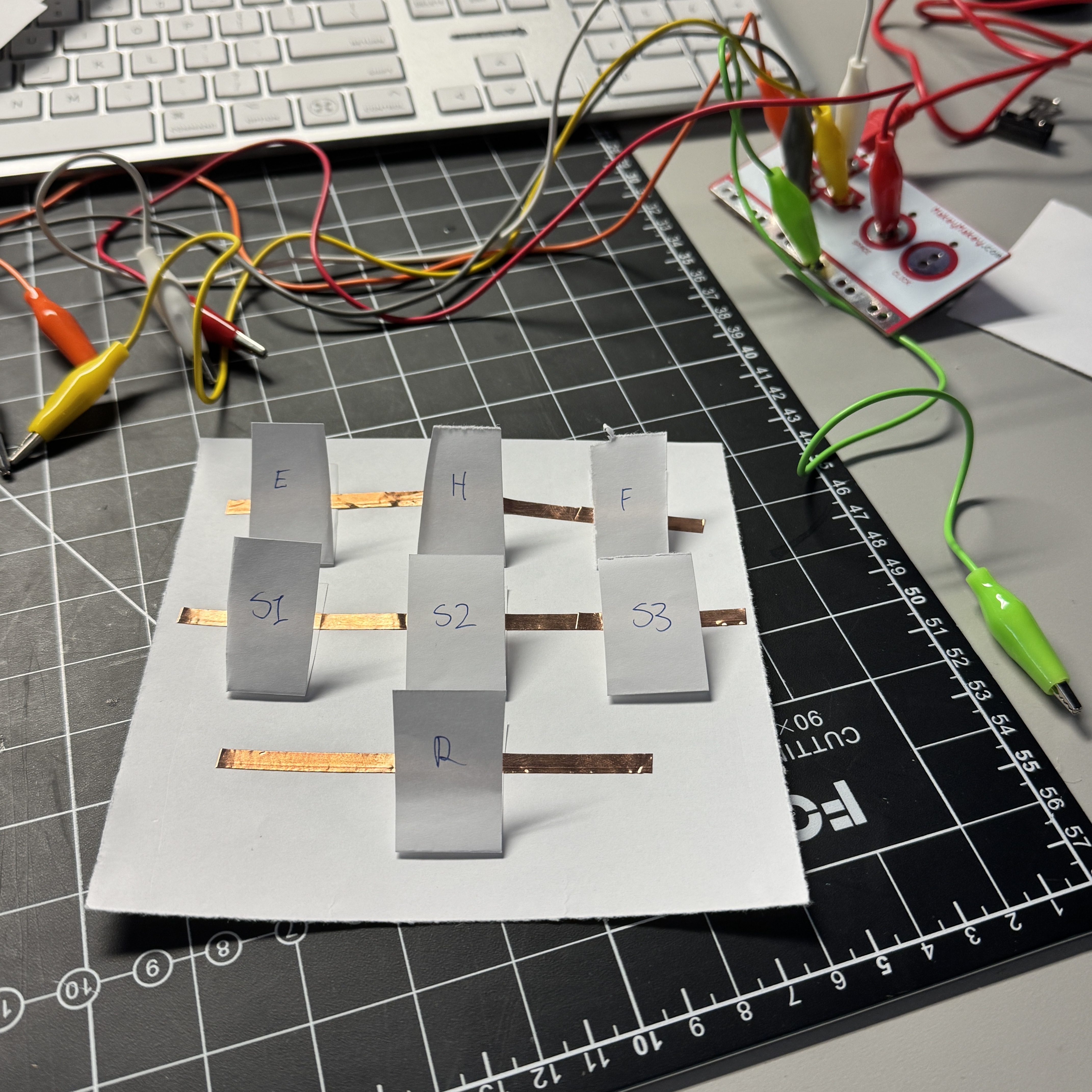
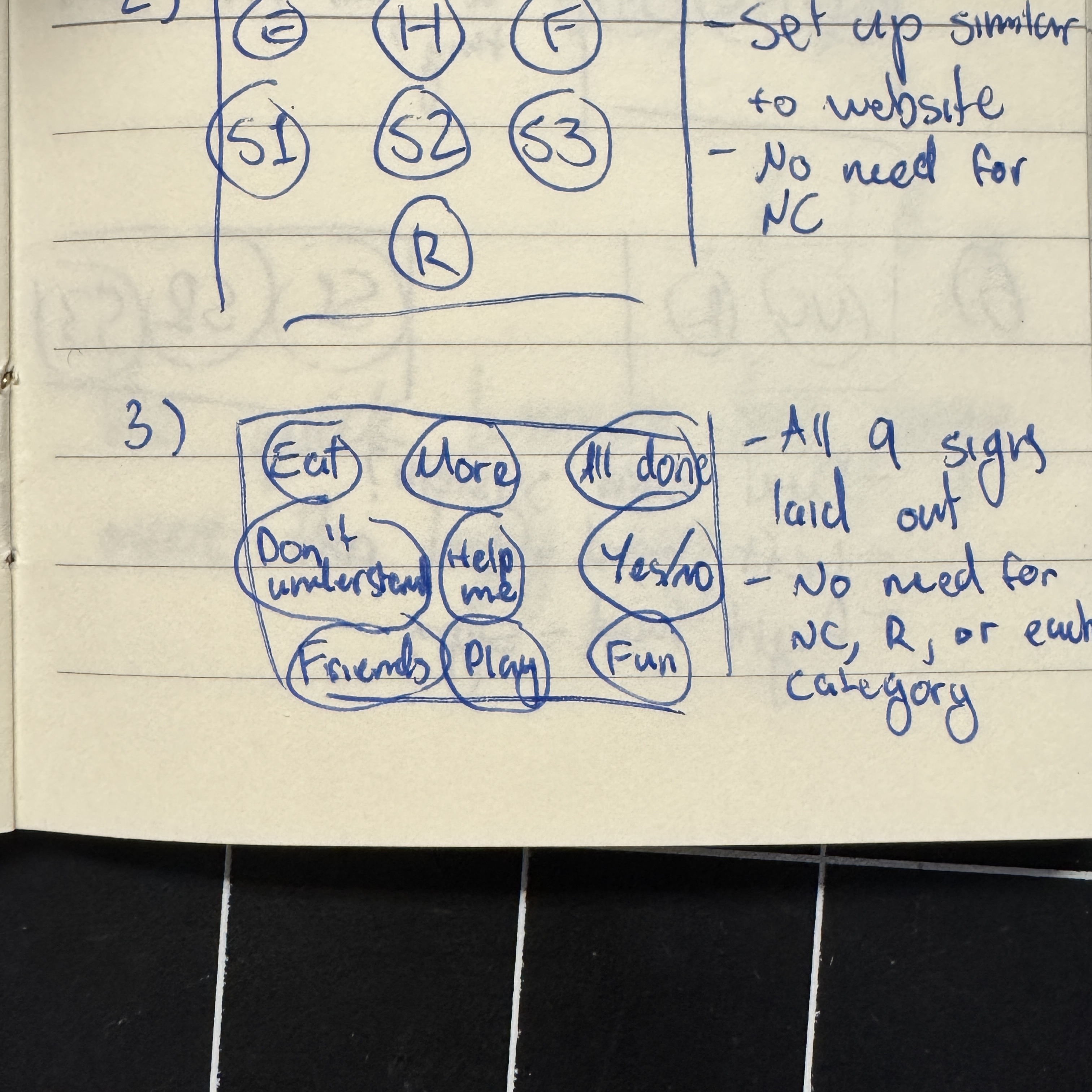
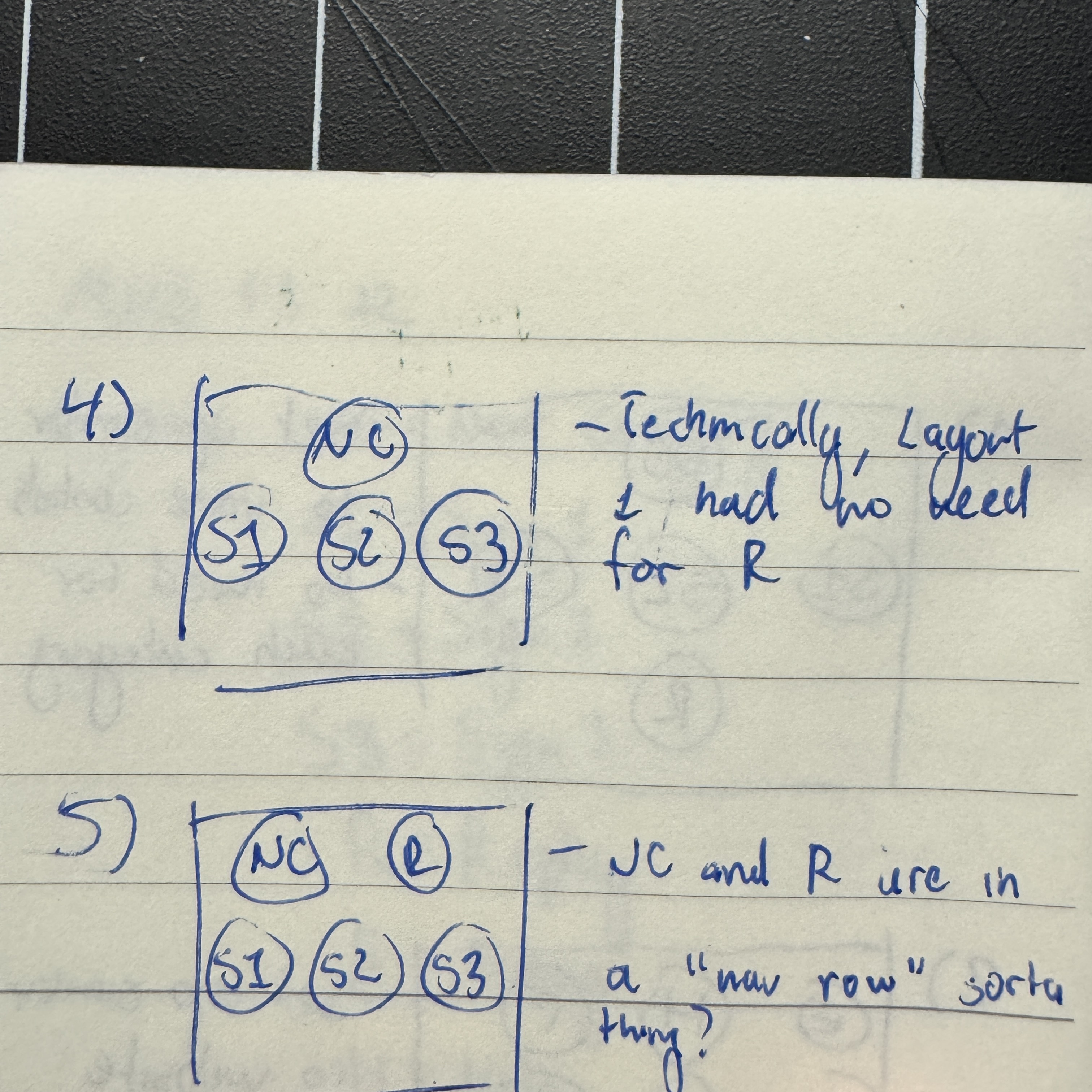
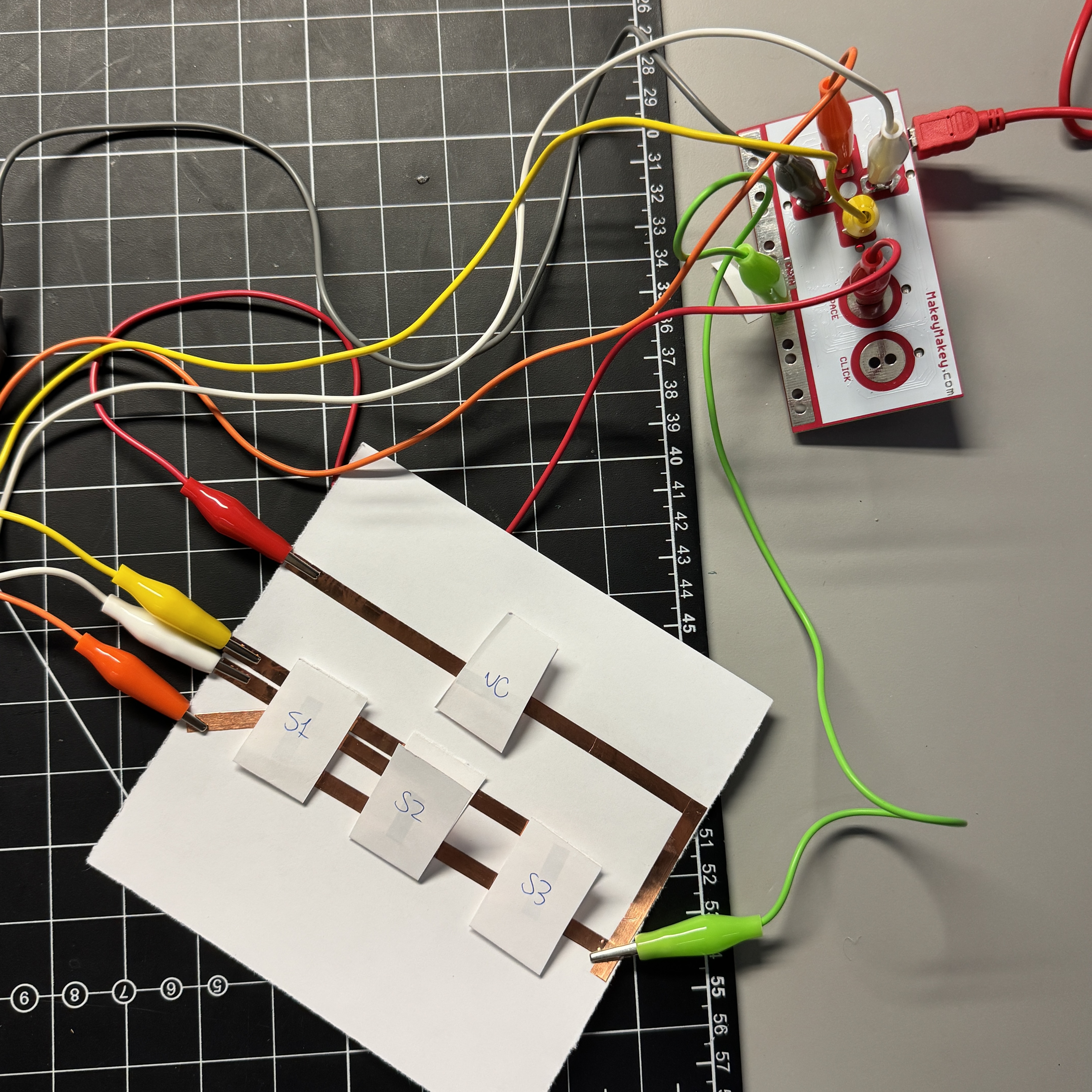
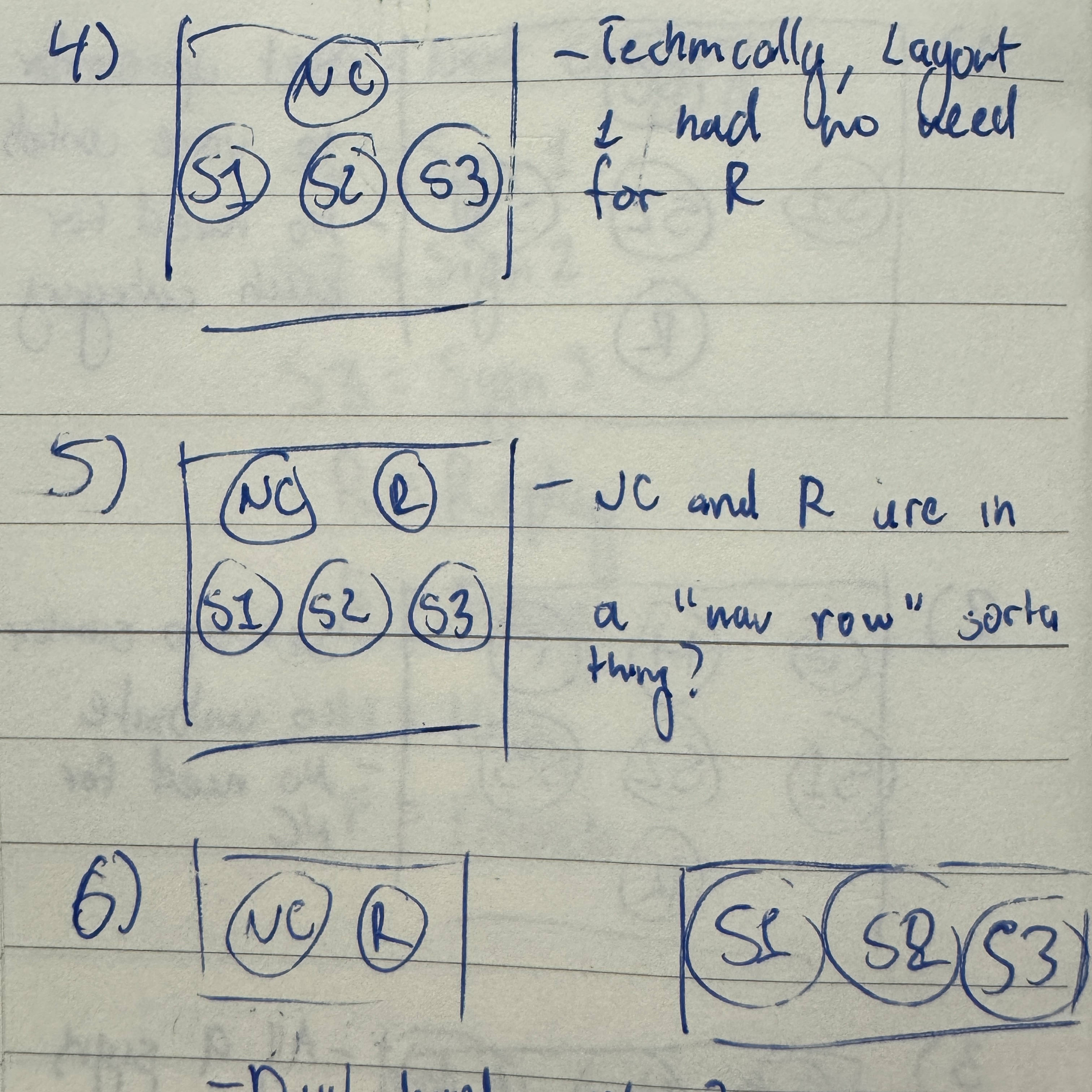
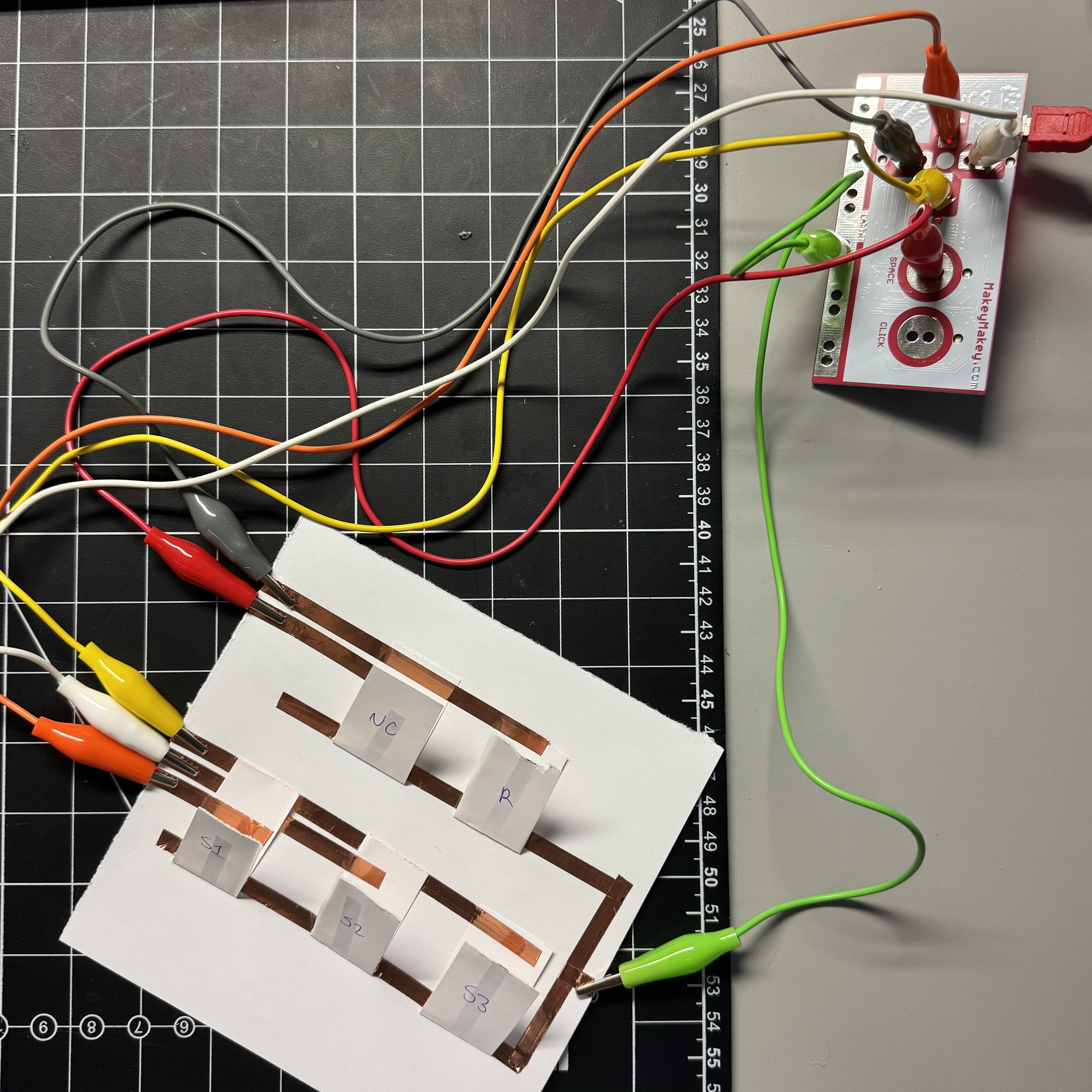
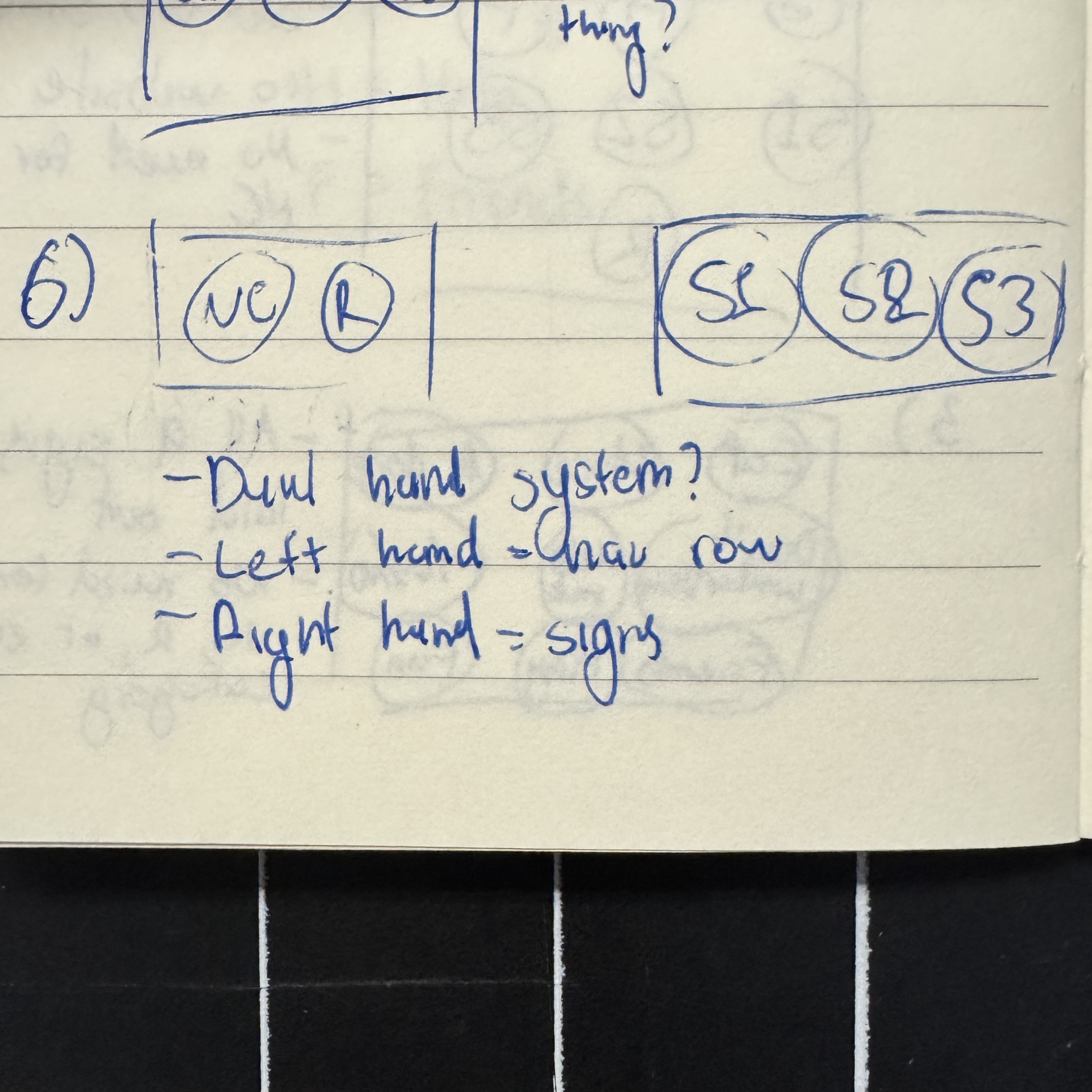
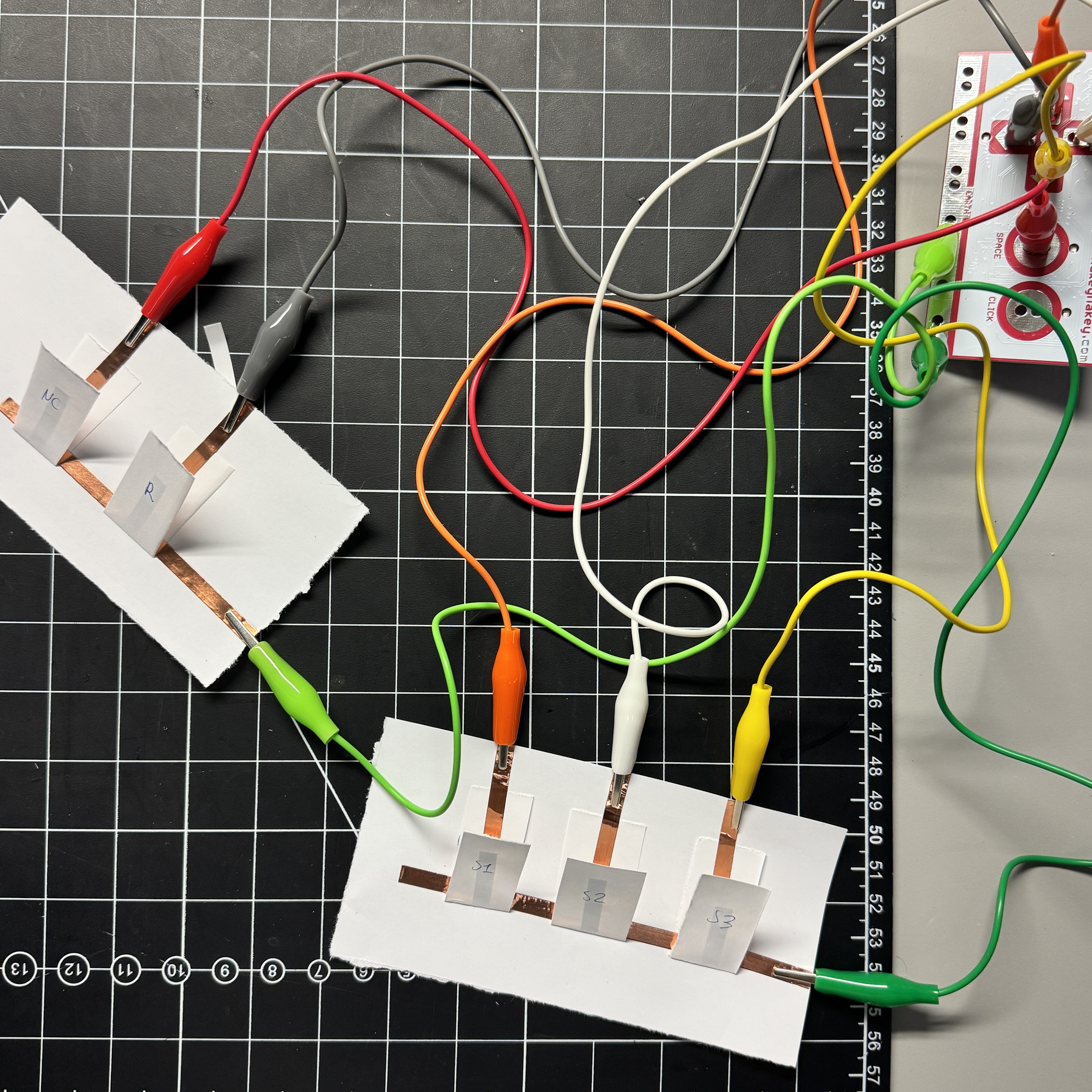
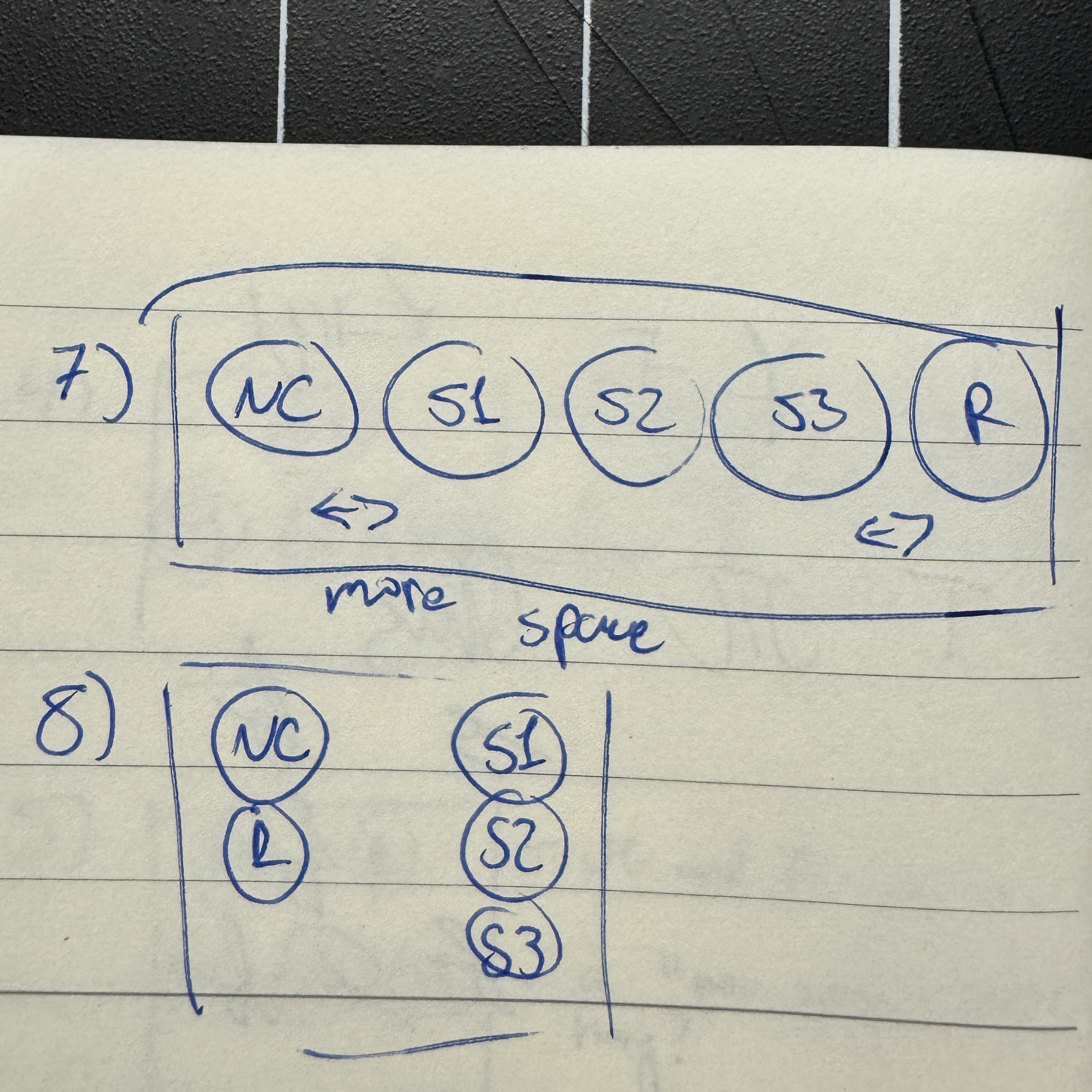
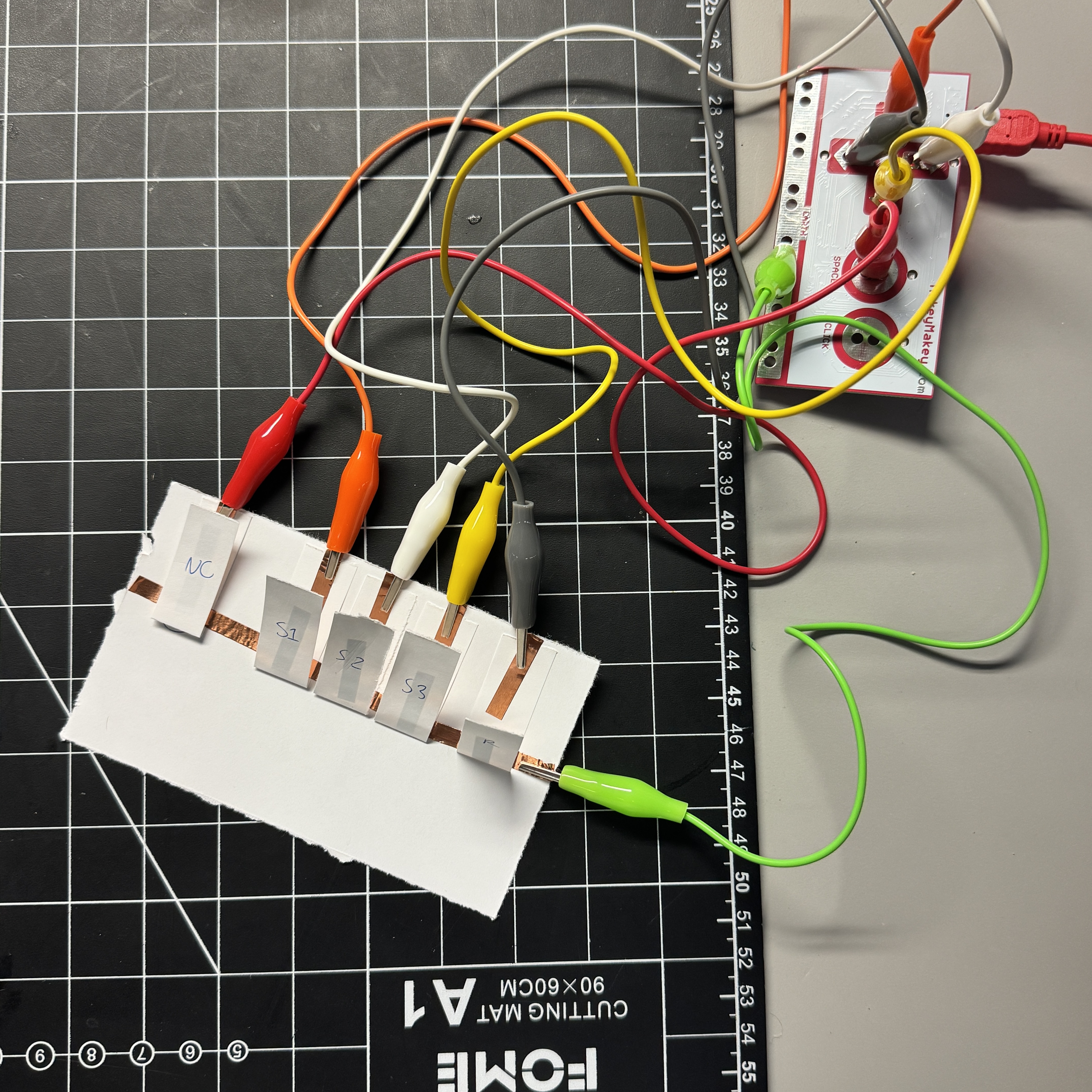
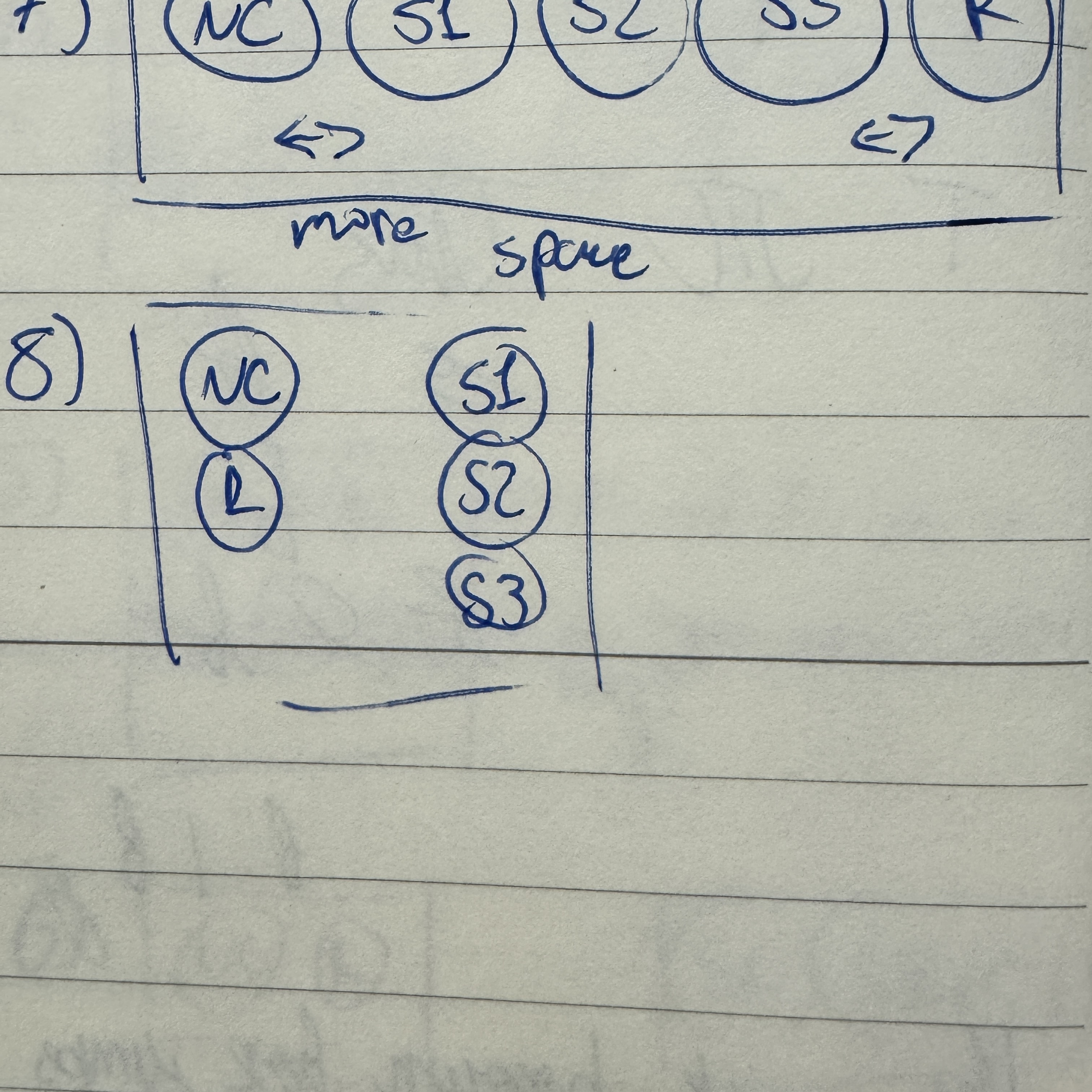
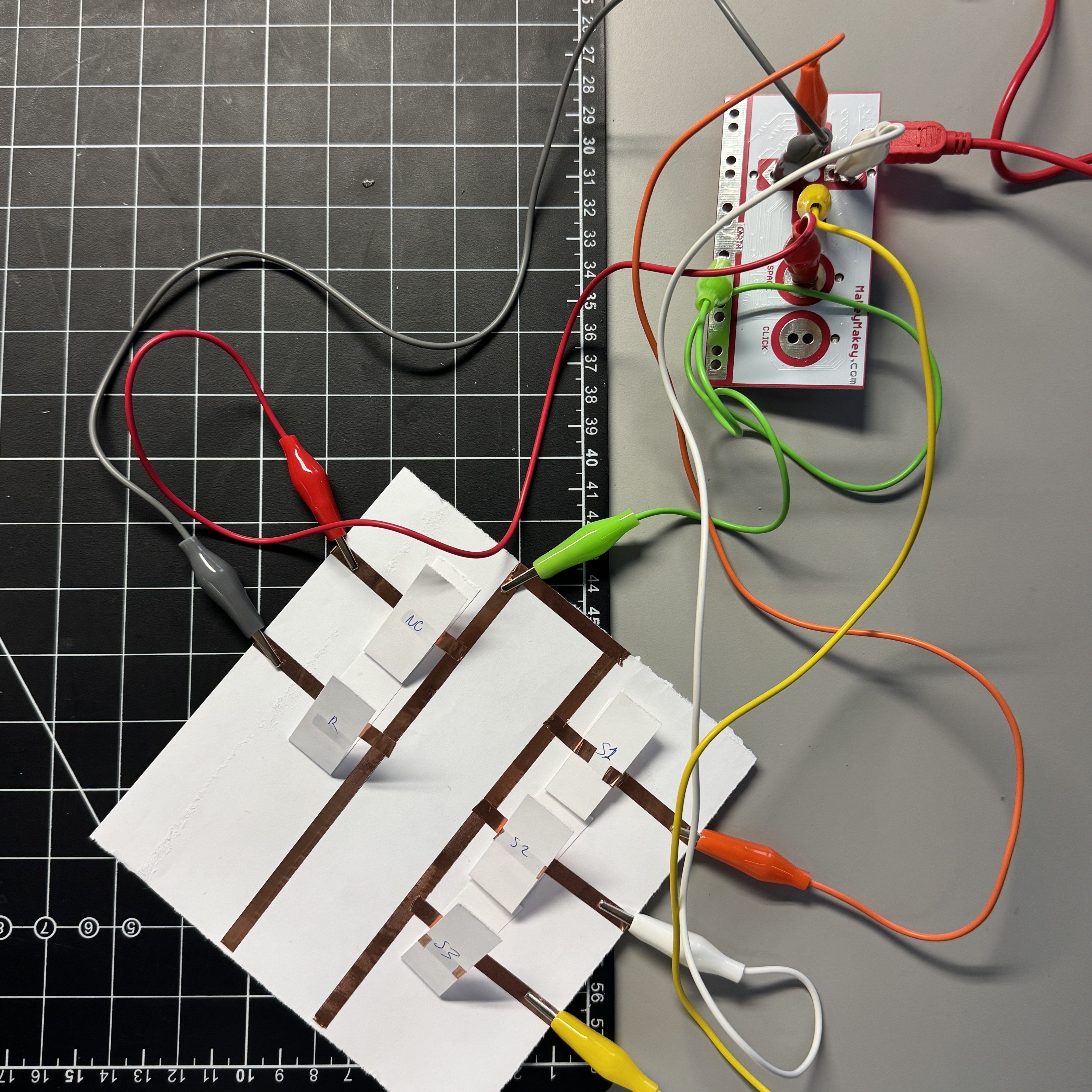
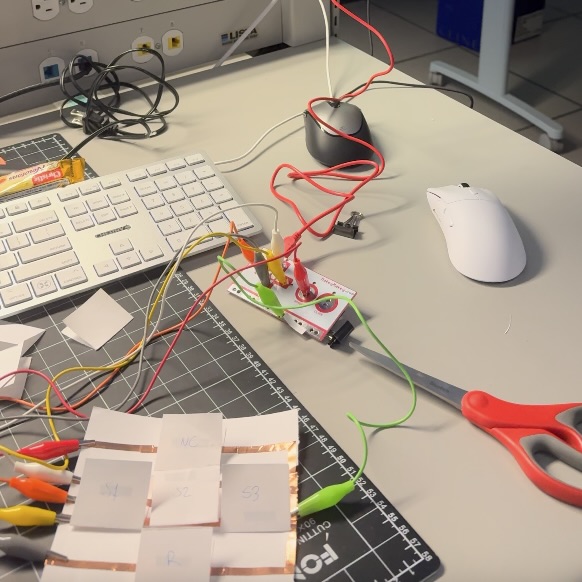
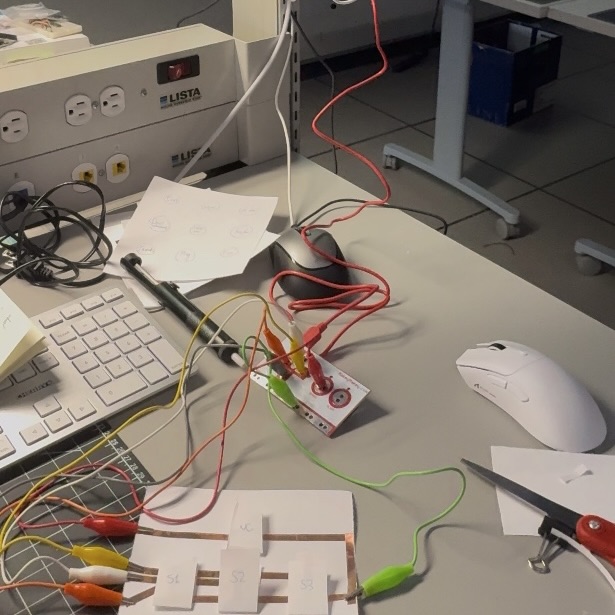
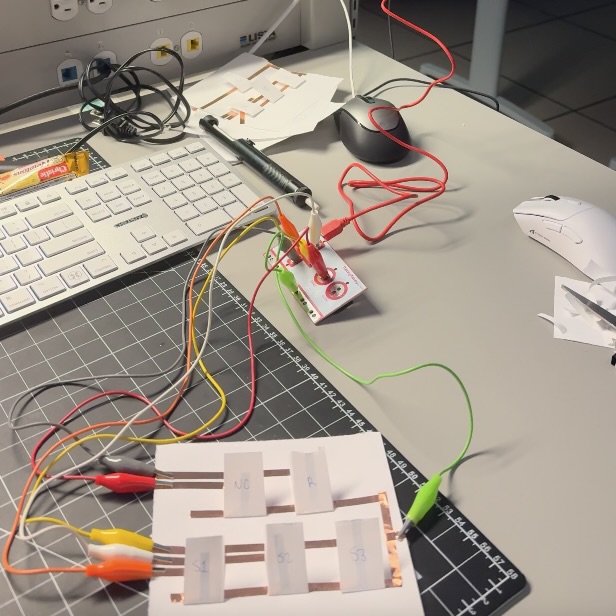
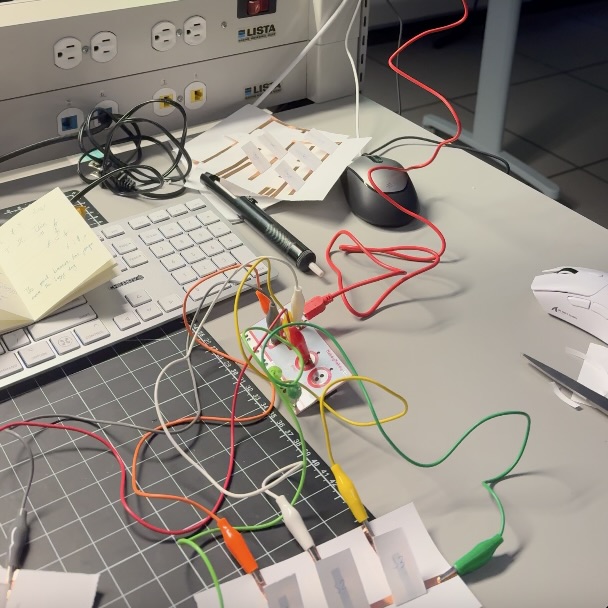
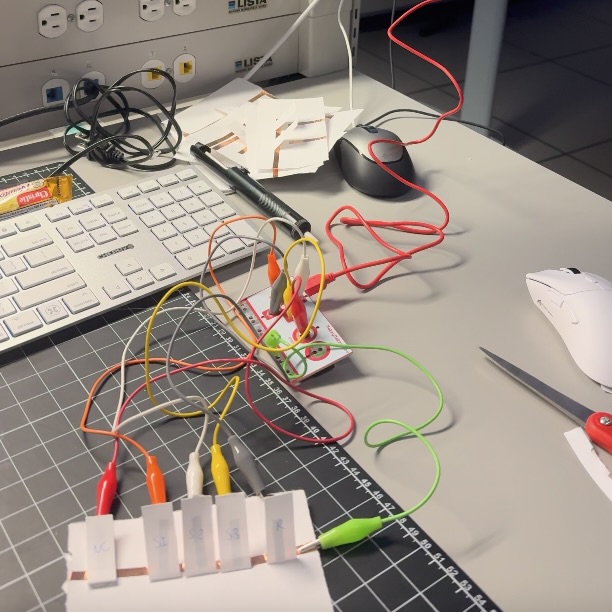
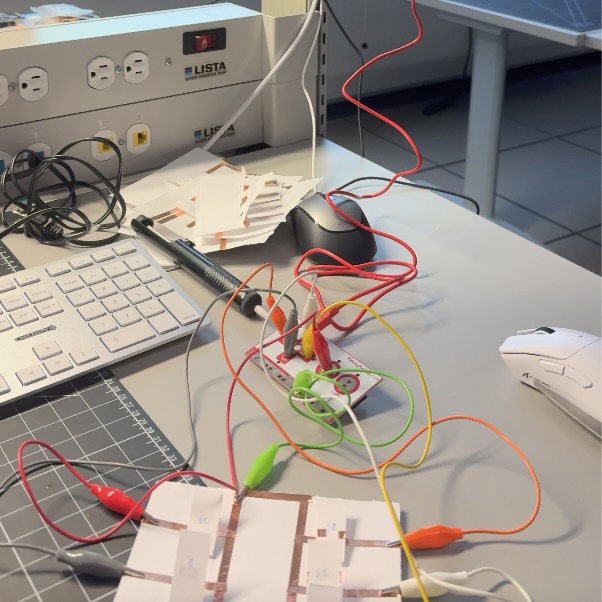
Before working, I drew some sketches. Sketches part 2. This is the legend to read my sketches. This is the final product of each sketched layout. First, I decided to base the layout on the voice controls. This was the final paper layout. This is the second layout I sketched. When I built it, I realized there are too many button for the Makey-Makey. The too-many-buttons problem continued for the next sketch too, so I decided not to make it. My fourth layout removed the replay button, since you can just press the same sign button twice. This was its final paper layout. My next layout, I wanted to try a nav row concept for the buttons. This was the final paper prototype. For my sixth layout, I wanted to try a two-handed system. This was the final paper layout. I tried to sketch the previous layout as a single-row control panel. Here was the final paper prototype. I tried to make a two-column control panel, which could be used with two hands or one. This was the final layout on paper. Here's the first video demo. <a href='https://youtube.com/shorts/jfkW9oJlX7o?feature=share' target='_blank'><p>Video demo</p></a> This is the second video demo. <a href='https://youtube.com/shorts/qjM74oe2U0k?feature=share'><p>Video demo</p></a> This is the third video demo. <a href='https://youtube.com/shorts/GD06XsryP1w?feature=share'><p>Video demo</p></a> Here's the fourth video demo. <a href='https://youtube.com/shorts/RpqDK0f9zUE?feature=share'><p>Video demo</p></a> Here's the fifth video demo. <a href='https://youtube.com/shorts/I8zwY0xzXXk?feature=share'><p>Video demo</p></a> This is the sixth video demo. <a href='https://youtube.com/shorts/PN6SjHRdQYs?feature=share'><p>Video demo</p></a>

Project 3


Final Project 3 Design

The Makey-Makey Control Panel
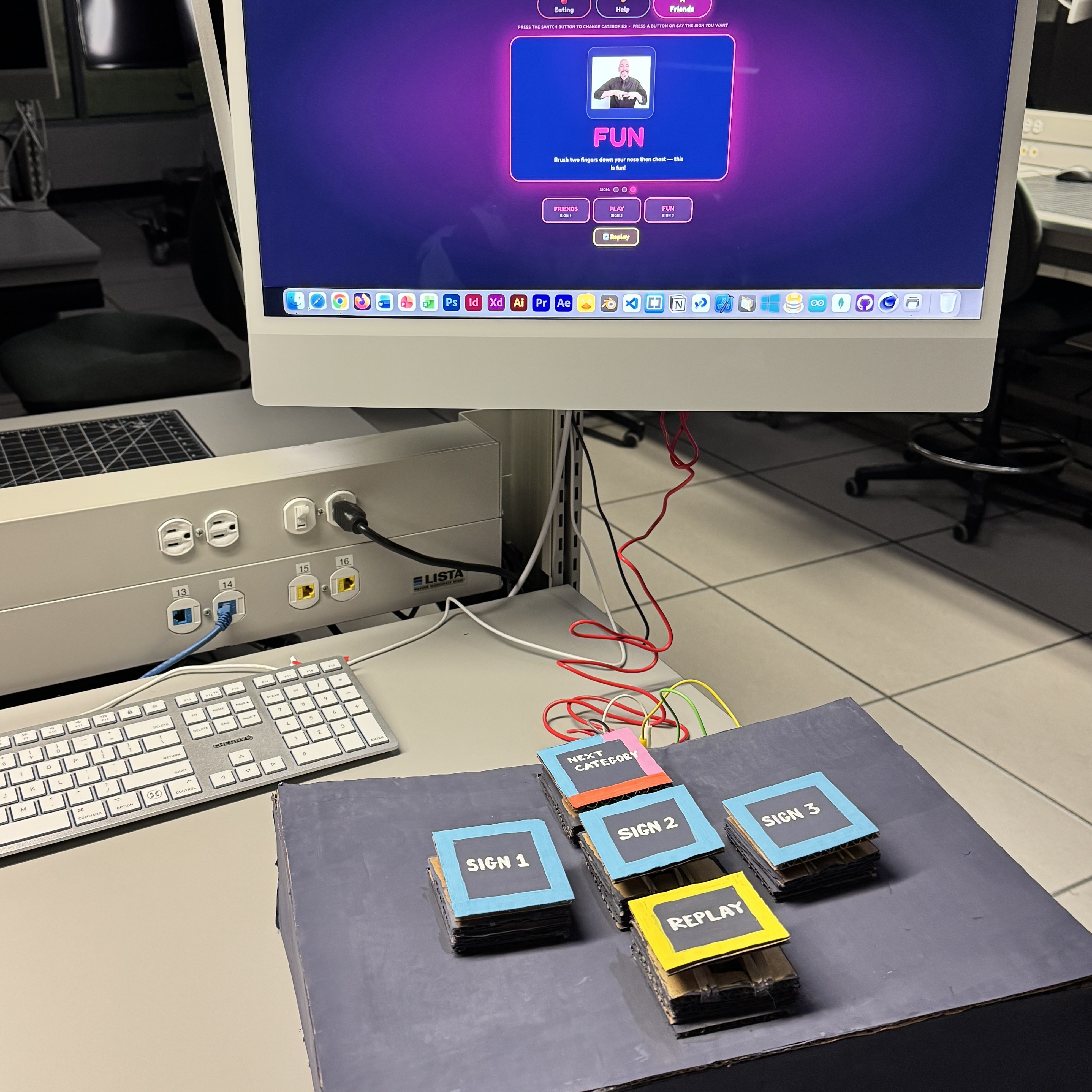
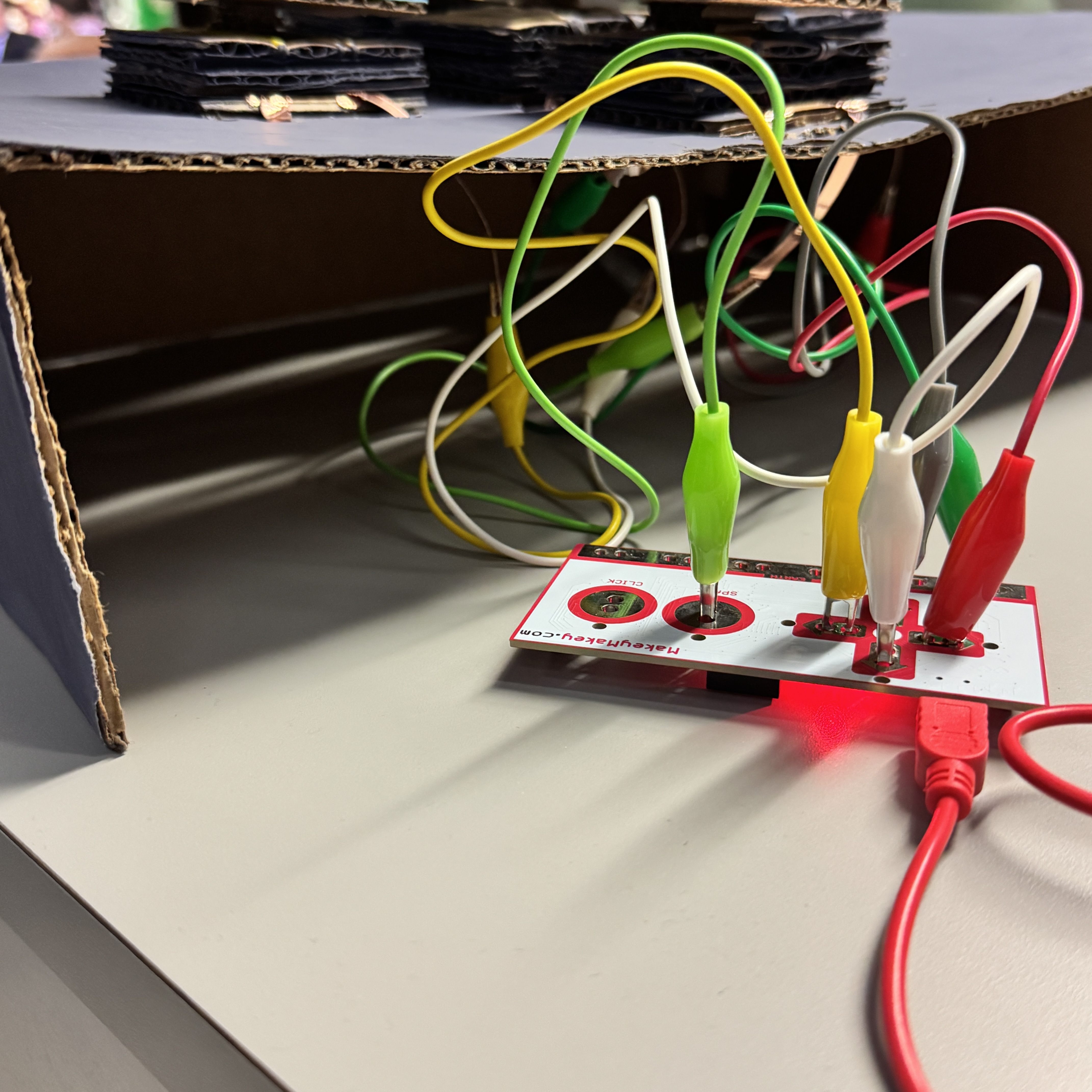
After putting everything together and taking inspiration from the website for the visual design, this was the final design. Check out the video demo! <a href='https://youtube.com/shorts/1U8sz7GZ-Rw?feature=share'><p>Video demo</p></a> This is the back of the Makey-Makey setup. During Activity 2, I hated how messy everything looked with the wires, so I propped up the control panel and made it more like a box. I cut holes behind the buttons to connect copper tape extensions to the incomplete circuits. Each button was then connected to the proper key of the Makey-Makey, and one long copper tape piece connected each button to the ground wire.
×

Powered by w3.css